
Cross-Border Import Payments Integration Guide
Step-by-step technical guide to integrate Pine Labs PA-CB Import flow for accepting cross-border payments.
Learn how you can integrate with Pine Labs Online APIs to start accepting cross border Import Payments on your website.
Follow the below steps to integrate with Pine Labs Online PA-CB seamless checkout APIs in your application.
- Generate Token
- Create Order
- Compute TCS
- Create Payment
- Create Invoice
- Upload Invoice
- Create AWB
- Upload AWB File
Prerequisites — Get Your API Credentials
Before you begin integrating, create your free Pine Labs Online developer account to get access to UAT credentials, API keys, and the merchant dashboard.
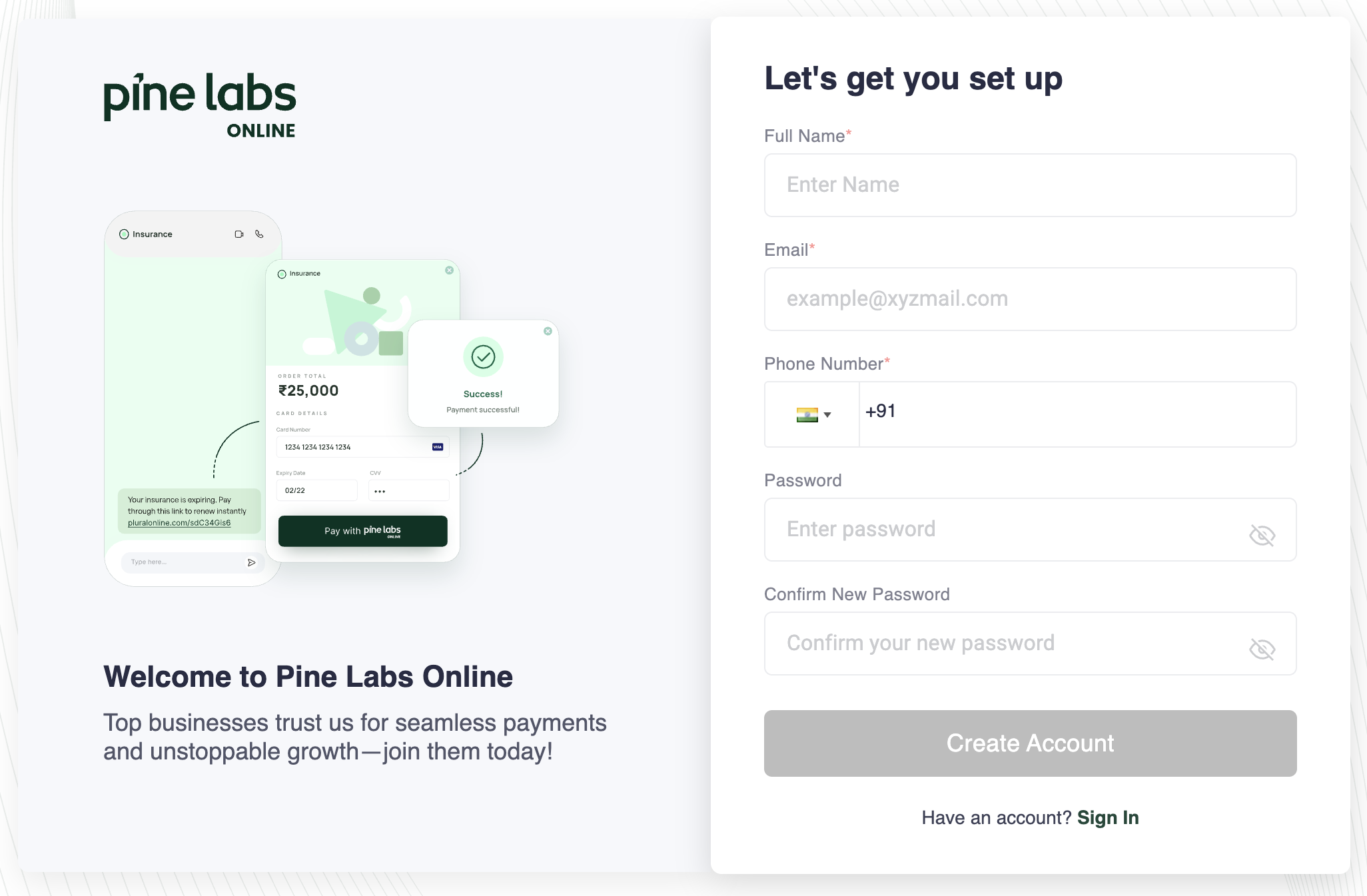
- Sign Up — Visit the Pine Labs Online Dashboard and register with your business email.
Create Account - Verify Your Email — Confirm your email address through the verification link sent to your inbox.
- Find Your Credentials — Once logged in, Switch to Test mode and navigate to Settings → API Keys to generate your test-mode API key and secret.
- Copy both credentials — These are your PINELABS_CLIENT_ID and PINELABS_CLIENT_SECRET values. Store them securely — you will need them in the next step.
📘 Note
- Ensure you store your
client_idandclient_secretin your Backend securely.- Integrate our APIs on your backend system.
- We strictly recommend not to call our APIs from the frontend.
- Failure to adhere to the above guidelines may result in legal implications. In such cases, you will be held responsible for any damage or loss arising from non-compliance.
🚧 Watch Out
- To Integrate with Pine Labs Online seamless checkout flow you must have a PCI compliance certificate.
1. Generate Token
Integrate our Generate Token API in your backend servers to generate the access token. Use the token generated to authenticate Pine Labs Online APIs.
Below are the sample requests and response for the Generate Token API.
curl --request POST \
--url https://pluraluat.v2.pinepg.in/api/auth/v1/token \
--header 'accept: application/json' \
--header 'content-type: application/json' \
--header 'Request-Timestamp: 2024-07-09T07:57:08.022Z' \
--header 'Request-ID: c17ce30f-f88e-4f81-ada1-c3b4909ed235' \
--data '
{
  "client_id": "a17ce30e-f88e-4f81-ada1-c3b4909ed232",
  "client_secret": "fgwei7egyhuggwp39w8rh",
  "grant_type": "client_credentials"
}
'
Refer to our Generate Token API documentation to learn more.
2. Create Order
To create an Order, use our Create Order API, for authentication use the generated access token in the headers of the API request.
Below are the sample requests and response for a Create Order API.
curl --location 'https://pluraluat.v2.pinepg.in/api/pay/v1/orders' \
--header 'Content-Type: application/json' \
--header 'Authorization: Bearer eyJhbGciOiJIUzI1NiIsInR5cCI6IkpXVCJ9.eyJzdWIiOiIxMjM0NTY3ODkwIiwibmFtZSI6IkpvaG4gRG9lIiwiaWF0IjoxNTE2MjM5MDIyfQ.SflKxwRJSMeKKF2QT4fwpMeJf36POk6yJV_adQssw5c' \
--data '{
  "merchant_order_reference": 112345,
  "order_amount": {
    "value": 1100,
    "currency": "INR"
  },
  "pre_auth": false,
  "allowed_payment_methods": [
    "CARD",
    "UPI",
    "NETBANKING",
    "POINTS",
    "WALLET"
  ],
  "notes": "order1",
  "callback_url": "https://sample-callback-url",
  "failure_callback_url": "https://sample-failure-callback-url",
  "purchase_details": {
    "customer": {
      "email_id": "kevin.bob@example.com",
      "first_name": "Kevin",
      "last_name": "Bob",
      "customer_id": "123456",
      "mobile_number": "9876543210",
      "country_code": "91",
      "billing_address": {
        "address1": "H.No 15, Sector 17",
        "address2": "",
        "address3": "",
        "pincode": "61232112",
        "city": "CHANDIGARH",
        "state": "PUNJAB",
        "country": "INDIA",
        "full_name": "Kevin Bob",
        "adddress_type": "Home",
        "address_category": "billing"
      },
      "shipping_address": {
        "address1": "H.No 15, Sector 17",
        "address2": "",
        "address3": "",
        "pincode": "144001123",
        "city": "CHANDIGARH",
        "state": "PUNJAB",
        "country": "INDIA",
        "full_name": "Kevin Bob",
        "adddress_type": "Home",
        "address_category": "shipping"
      }
    },
    "merchant_metadata": {
      "key1": "DD",
      "key2": "XOF"
    }
  },
  "cross_border_details": {
    "settlement_currency": "USD",
    "hs_code": "8471300000",
    "hs_description": "Portable digital automatic data processing machines",
    "iec_code": "0512345678"
  }
}'
Refer to our Create Order API documentation to learn more.
3. Compute TCS
To calculate the tax computed at source, use our Compute TCS API.
Below are the sample requests and sample response for Compute TCS API.
curl --location 'https://pluraluat.v2.pinepg.in/api/v1/tcs/compute' \
--header 'Content-Type: application/json' \
--header 'Authorization: Bearer eyJhbGciOiJIUzI1NiIsInR5cCI6IkpXVCJ9.eyJzdWIiOiIxMjM0NTY3ODkwIiwibmFtZSI6IkpvaG4gRG9lIiwiaWF0IjoxNTE2MjM5MDIyfQ.SflKxwRJSMeKKF2QT4fwpMeJf36POk6yJV_adQssw5c' \
--data '{
  "order_id": "v1-260430151510-aa-rPpSR3",
  "amount": {
    "value": 500000,
    "currency": "INR"
  },
  "is_tcs_declared": true
}'
Refer to our Compute TCS API documentation to learn more.
📘 Note:
- TCS Compute API integration is required only for LRS + Services cross-border orders.
4. Create Payment
To create a payment, use our Create Payment API, use the order_id returned in the response of a Create Order API to link the payment against an order.
Below are the sample requests and sample response for Card Payment API.
curl --request POST \
--url 'https://pluraluat.v2.pinepg.in/api/pay/v1/orders/v1-4405071524-aa-qlAtAf/payments' \
--header 'Content-Type: application/json' \
--header 'Authorization: Bearer eyJhbGciOiJIUzI1NiIsInR5cCI6IkpXVCJ9.eyJzdWIiOiIxMjM0NTY3ODkwIiwibmFtZSI6IkpvaG4gRG9lIiwiaWF0IjoxNTE2MjM5MDIyfQ.SflKxwRJSMeKKF2QT4fwpMeJf36POk6yJV_adQssw5c' \
--data '{
  "merchant_payment_reference": "39965ef7-355f-45a0-a8b7-9cd48b77fec2",
  "payment_method": "CARD",
  "payment_amount": {
    "value": 1000,
    "currency": "INR"
  },
  "payment_option": {
    "card_details": {
      "name": "John Doe",
      "card_number": "4000000000000000",
      "cvv": "065",
      "expiry_month": "12",
      "expiry_year": "2026"
    }
  },
  "payer_data": {
    "first_name": "Rajesh",
    "last_name": "Patel",
    "pan": "KGEPS1880J",
    "dob": "1999-04-14",
    "email": "rajesh@techcorp.com",
    "phone": "9876543210",
    "country_code": "91",
    "is_tcs_declared": true
  },
  "tcs_data": {
    "tcs_applicable": true,
    "tcs_rate": "2.00",
    "original_amount": {
      "value": 1000,
      "currency": "INR"
    },
    "computed_amount": {
      "value": 1020,
      "currency": "INR"
    },
    "slab_id": "EDU_MED_FY2627",
    "is_flat_rate": false,
    "financial_year": "2026-27",
    "breakdown": {
      "amount": {
        "value": 1000,
        "currency": "INR"
      },
      "tcs": {
        "value": 20,
        "currency": "INR"
      }
    }
  }
}'
Refer to our Create Payment API documentation to learn more.
The above API example includes a sample request and response for a card payment. If your customer chooses another payment method, such as UPI, netbanking, wallet, or any other supported option, you must pass the payload applicable to that payment method.
Payment method-specific request and response samples are listed below:
| Payment Method | Description |
|---|---|
| Card Payments | Process card-based payments including OTP authorization. |
| UPI Payments | Process UPI payments via intent and QR flows. |
| NetBanking | Process net banking payments. |
| EMI Payments | Discover offers, validate EMI eligibility, and process EMI payments. |
5. Create Invoice
To update the invoice details, use our Create Invoice Details API.
📘 Note:
- An invoice number is mandatory for every order. For successful transactions, settlement processing will begin only after the required invoice details have been submitted. Once the invoice details are successfully provided, the transaction becomes eligible for settlement on
T+1, subject to applicable compliance and verification checks.
Below are the sample requests and sample response for Create Invoice Details API.
curl --location 'https://pluraluat.v2.pinepg.in/api/pay/v1/orders/v1-260430151510-aa-rPpSR3/invoice' \
--header 'Content-Type: application/json' \
--header 'Authorization: Bearer eyJhbGciOiJIUzI1NiIsInR5cCI6IkpXVCJ9.eyJzdWIiOiIxMjM0NTY3ODkwIiwibmFtZSI6IkpvaG4gRG9lIiwiaWF0IjoxNTE2MjM5MDIyfQ.SflKxwRJSMeKKF2QT4fwpMeJf36POk6yJV_adQssw5c' \
--data '
{
  "invoice_number": "INV-2026-001",
  "invoice_date": "2026-04-28",
  "supplier_name": "Global Exports Ltd"
  }
'
Refer to our Create Invoice Details API documentation to learn more.
6. Upload Invoice
To upload a invoice into our system, use our Upload Invoice API.
Below are the sample requests and sample response for Upload Invoice API.
curl --location --request PUT 'https://pluraluat.v2.pinepg.in/api/pay/v1/orders/v1-260430151510-aa-rPpSR3/invoice/INV-2026-001/upload' \
--header 'Content-Type: multipart/form-data' \
--header 'accept: application/json' \
--header 'Authorization: Bearer eyJhbGciOiJIUzI1NiIsInR5cCI6IkpXVCJ9.eyJzdWIiOiIxMjM0NTY3ODkwIiwibmFtZSI6IkpvaG4gRG9lIiwiaWF0IjoxNTE2MjM5MDIyfQ.SflKxwRJSMeKKF2QT4fwpMeJf36POk6yJV_adQssw5c' \
--form 'file=@"/path/to/invoice.pdf"'
Refer to our Upload Invoice API documentation to learn more.
7. Create AWB
To create a airway bill, use our Create AWB API, use the order_id returned in the response of a Create Order API to link the AWB against an order.
📘 Note:
- For B2B physical goods import orders, providing an AWB (Air Waybill) number is mandatory. Settlement processing for these transactions will begin only after both the required invoice details and AWB details have been successfully submitted. Once all required documentation is provided, the transaction becomes eligible for settlement on
T+1, subject to applicable compliance and verification checks.
Below are the sample requests and sample response for Create AWB API.
curl --request POST \
--url 'https://pluraluat.v2.pinepg.in/api/pay/v1/orders/v1-260520225359-aa-LHy288/awb' \
--header 'Content-Type: application/json' \
--header 'Authorization: Bearer eyJhbGciOiJIUzI1NiIsInR5cCI6IkpXVCJ9.eyJzdWIiOiIxMjM0NTY3ODkwIiwibmFtZSI6IkpvaG4gRG9lIiwiaWF0IjoxNTE2MjM5MDIyfQ.SflKxwRJSMeKKF2QT4fwpMeJf36POk6yJV_adQssw5c' \
--data '[
  {
    "awb_number": "AWB-2026-001",
    "awb_date": "2026-05-22",
    "tracking_url": "https://www.dhl.com/track?id=AWB-2026-001"
  },
  {
    "awb_number": "AWB-2026-002",
    "awb_date": "2026-05-22",
    "tracking_url": "https://www.fedex.com/track?id=AWB-2026-002"
  }
]'
Refer to our Create AWB API documentation to learn more.
8. Upload AWB
To upload a airway bill, use our upload AWB API, use the order_id returned in the response of a Create Order API to link the AWB against an order.
Below are the sample requests and sample response for Upload AWB API.
curl --request PUT \
--url 'https://pluraluat.v2.pinepg.in/api/pay/v1/orders/v1-260520225359-aa-LHy288/awb/awb-260522-001/upload' \
--header 'Content-Type: multipart/form-data' \
--header 'accept: application/json' \
--header 'Authorization: Bearer eyJhbGciOiJIUzI1NiIsInR5cCI6IkpXVCJ9.eyJzdWIiOiIxMjM0NTY3ODkwIiwibmFtZSI6IkpvaG4gRG9lIiwiaWF0IjoxNTE2MjM5MDIyfQ.SflKxwRJSMeKKF2QT4fwpMeJf36POk6yJV_adQssw5c' \
--form 'file=@"/path/to/awb-document.pdf"'
Refer to our Upload AWB API documentation to learn more.
Check Payment and Related Statuses
You can track payment, invoice, AWB, and settlement statuses using the Pine Labs Online Dashboard, webhook notifications, or APIs. Below are the available options to check Payment and Related Statuses.
Use the Dashboard
Use the Dashboard to quickly view the current status of payments, invoices, AWBs, and settlements without making API calls.
This is useful for operational teams, manual checks, and reconciliation.
Use Webhook Notifications
Webhook notifications are the recommended way to receive real-time updates.
We send webhook notifications when a payment is successful or when there are changes to the payment object. You can use these events to automatically update your internal systems.
Use Fetch APIs
You can also use our APIs to retrieve the latest status of payments, invoices, AWBs, and settlements on demand.
Payment Status
- Get Order by Order ID
Invoice Status
- Get Invoice
AWB Status
- Get All AWBs
- Get AWB by ID
Settlement Status
- Get All Settlements
- Get Settlements by UTR