
Magento Payment Gateway Plugin
Add the Pine Labs Online Payment Gateway Plugin to your Magento store to accept secure online payments, improve checkout performance, and support multiple payment methods.
Overview
Integrating with the Pine Labs Online Magento Plugin enables seamless payment processing through credit cards, debit cards, and EMI options via the PinePG Edge platform. Below is a simple, step-by-step guide to help you install and configure the PinePG Edge Plugin on your Magento site for smooth transactions.
Supported Platform Versions
| Platform | Magento |
| Supported Versions | 2.3.4v – 2.4.5v, 2.4.7v – 2.4.8v – 2.4.9v |
Learn how to integrate your Magento store with the Pine Labs Online. Watch the video tutorial below for a step-by-step guide.
Integration Steps
1. Download the Extension
- Download the Pine Labs Online Magento extension from GitHub.
- Click on
Code, then selectDownload ZIPto download the extension file.
2. Move Files to Magento Directory
- Unzip the downloaded file.
- Move the unzipped folder to the
app/codedirectory in your Magento installation, where custom code and extensions are stored.
Note: If the
codefolder does not exist within<root>/app, create it.
3. Run Terminal Commands
Open a terminal and navigate to your Magento root directory (where the bin directory and command-line tools are located). Run the following commands to enable the extension:
php bin/magento module:enable Pinelabs_PinePGGateway
php bin/magento setup:upgrade
php bin/magento setup:static-content:deploy
php bin/magento cache:clean
These commands activate the extension and make it available in Magento.
4. Configure the Extension
- Log in to your Magento backend.
- Go to Stores and Configuration.
- Under Sales choose Payment Methods, you'll find a list of available payment methods.
- Locate and select the payment method provided by the extension.
- Fill in the below following details:
- Enable: Select
Yesto enable the module. - Title: Enter a name to display on the checkout page.
- Select Cart Type: Choose between
SingleandMulti-Cartoptions based on your credentials. - Merchant Id: Enter the ID for the chosen Payment Environment (Test or Live).
- Merchant Access Code: Add the Access Code for the selected Payment Environment.
- Merchant Secret: Enter the Secret for the selected Payment Environment.
- Environment: Choose
Testfor testing orLivefor actual payments.
- Enable: Select
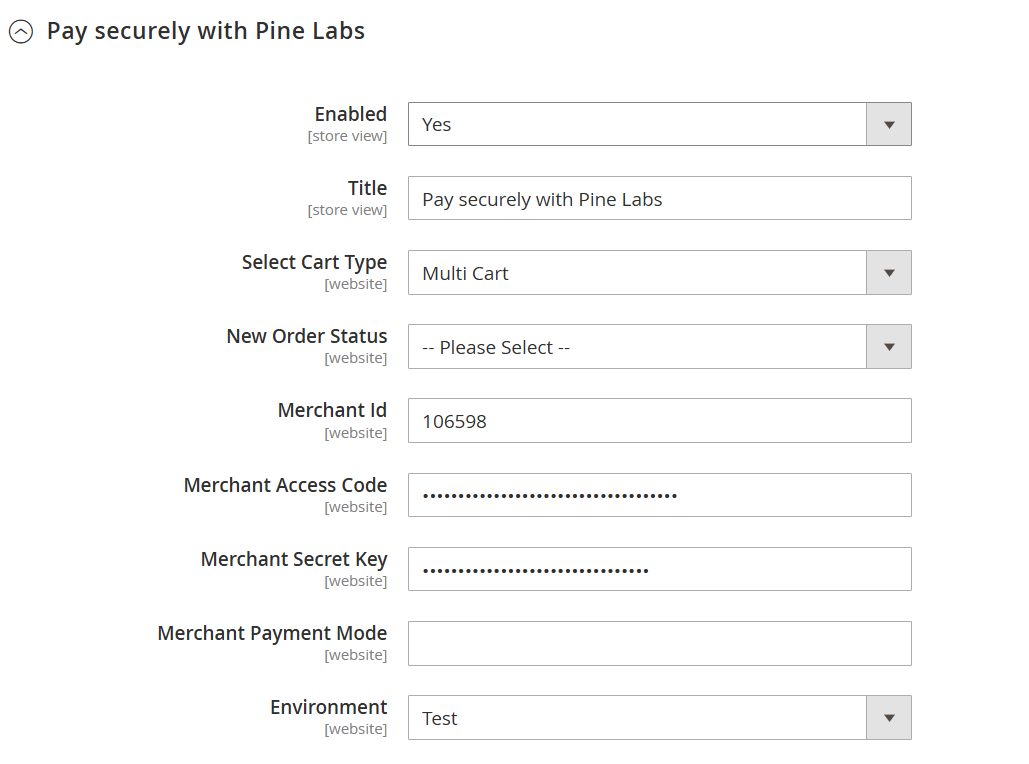
Note: The Merchant Payment Mode field must be left blank, as it is automatically determined based on the merchant's default configuration.
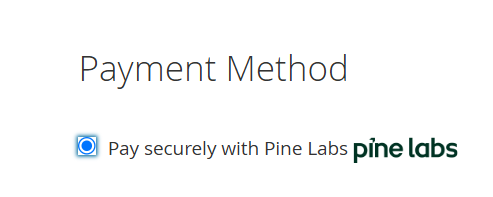
- After configuration, check the extension on your checkout page.
- Click Place Order to see the payment gateway options.
- Upon successful payment, you'll be redirected to a success page; otherwise, a failure page will appear.
Note:
- Pine Labs plugins do not handle shipping or additional charges (example:
TDR,GST).- Ensure that your cart value matches the product value, as any extra charges must be managed manually at the merchant end.