
Pine Labs Online Payment Dashboard
Your command centre for managing payments, refunds, settlements, payouts, and payment links — all from one place.
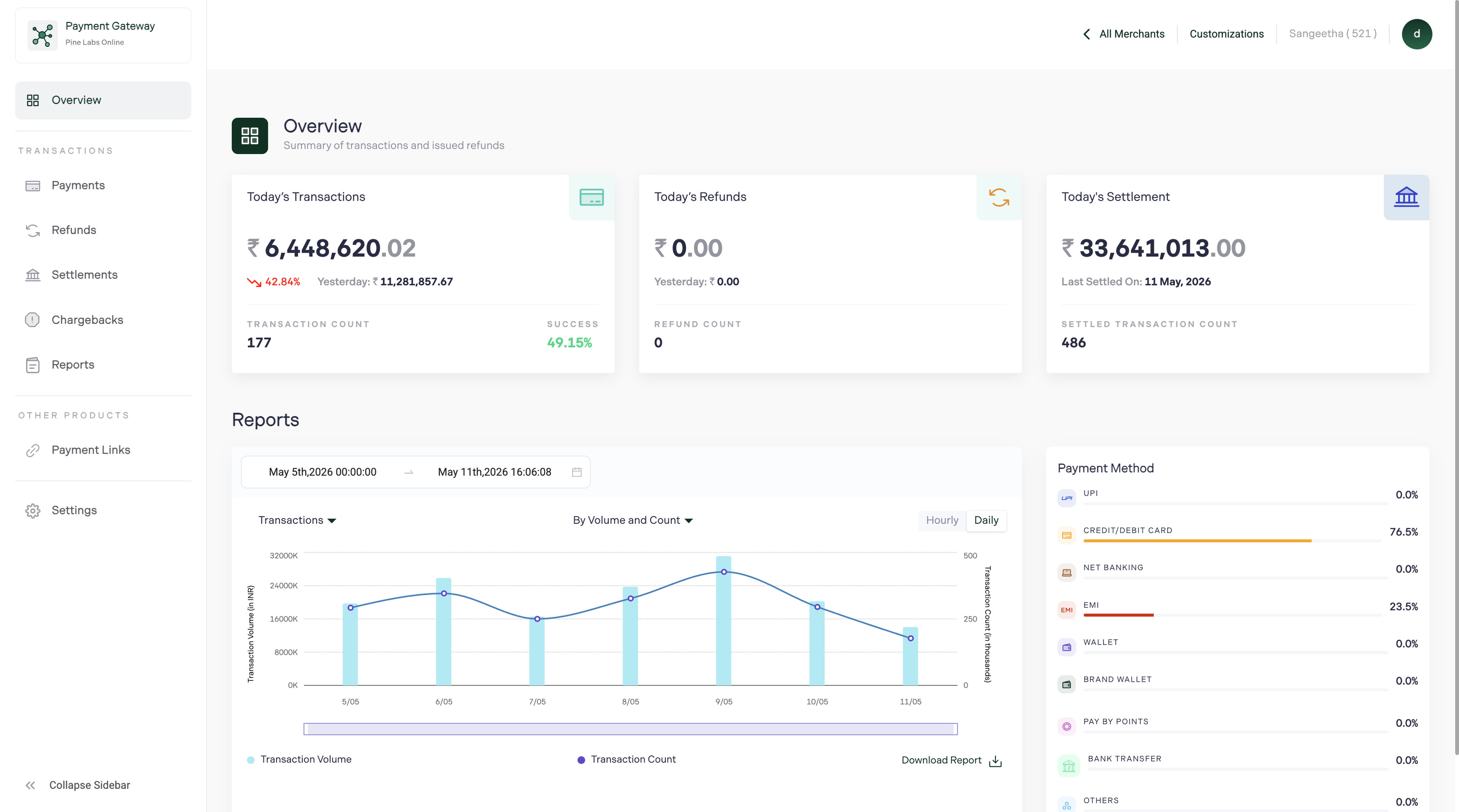
The Pine Labs Online Dashboard is your central interface for managing every aspect of your payment operations — from real-time transaction monitoring to refund processing, settlement tracking, and business configuration.
What you can do
Getting started
Access the Dashboard
- Go to dashboardv2.pluralonline.com
- Log in with your registered email and password
- If you don't have an account, sign up here

Environments
Pine Labs provides two environments. You can switch between them from the Dashboard:
| Environment | URL | Purpose |
|---|---|---|
| UAT (Sandbox) | https://dashboardv2-staging.pluralonline.com/login | UAT Dashboard Login |
| Production | https://dashboardv2.pluralonline.com/login | Production Dashbaord Login |
Tip: Always test your integration thoroughly on UAT before switching to production. See Test card details for UAT test data.
Common workflows
Checking a payment status
Go to Payments → search by order ID, merchant reference, or transaction ID → click the row to view full details, timeline, and payment method.
View Payment Tracking Guide →Issuing a refund
Find the transaction in Payments → click it → select Initiate Refund → choose full or partial, enter amount, and confirm.
View Refund Guide →Checking your settlements
Go to Settlements → view latest batches with amounts and UTR numbers → download the report for reconciliation.
View Settlement Guide →Creating a payment link
Go to Payment Links → click Create Payment Link → enter amount, description, customer details → share via email, SMS, or WhatsApp.
View Payment Link Guide →Search and filter
Every section in the Dashboard supports powerful search and filtering:
| Filter type | Available in | Example |
|---|---|---|
| Date range | All sections | Last 7 days, custom range |
| Status | Payments, Refunds, Payment Links | Captured, Failed, Pending |
| Amount range | Payments, Refunds, Settlements | ₹100 – ₹10,000 |
| Order ID | Payments, Refunds | ORD_abc123 |
| UTR number | Settlements, Payouts | Bank reference number |
| Payment method | Payments | Card, UPI, Netbanking, Wallet |
Export and reports
Download transaction data from any section for reconciliation, accounting, or analysis:
- Apply your desired filters
- Click the Export button
- Choose your format (CSV or Excel)
- The report downloads to your device
Note: Large exports may take a few moments to generate. You'll receive a notification when the file is ready.
Dashboard vs API
You can perform most operations through either the Dashboard or the API. Choose based on your workflow:
| Operation | Dashboard | API |
|---|---|---|
| View transactions | ✅ Visual interface with search | ✅ Get Order |
| Issue refunds | ✅ Point and click | ✅ Create Refund |
| Create payment links | ✅ Form-based creation | ✅ Create Payment Link |
| View settlements | ✅ Reports and downloads | ✅ Get Settlements |
| Manage settings | ✅ Dashboard only | ❌ Not available via API |
| Automate workflows | ❌ Manual only | ✅ Full automation with Webhooks |
Team access
Invite your team members with role-based access:
| Role | Access level |
|---|---|
| Owner | Full access to all sections and settings |
| Admin | Manage payments, refunds, settings, and team members |
| Finance | View payments, settlements, and payouts; process refunds |
| Operations | View payments and create payment links |
| View only | Read-only access to all sections |
To invite a team member:
- Go to Settings → Team
- Click Invite Member
- Enter their email and select a role
- They'll receive an invitation email to join
→ Configure team access in Settings
FAQ
Which browsers are supported?
The Dashboard works best on the latest versions of Chrome, Firefox, Safari, and Edge. For optimal experience, use Chrome or Firefox.
Can I access the Dashboard on mobile?
The Dashboard is optimised for desktop browsers. For quick checks on mobile, the responsive layout provides basic functionality, but full features are best accessed on desktop.
How do I switch between UAT and Production?
Your UAT and production accounts have separate login credentials. Use the UAT URL (https://pluraluat.v2.pinepg.in) for testing and the production URL for live operations.
Is there a way to set up notifications?
Yes. Configure Webhooks for real-time event notifications delivered to your server. For email alerts, check Settings → Notifications.