
Manage Payment Links via Dashboard
Create, share, track, and manage payment links directly from the Pine Labs Online Dashboard — no code required.
The Payment Links section in the Dashboard lets you create shareable payment links, track their status, and manage collections — all without writing a single line of code. Share links via WhatsApp, email, SMS, or QR code to collect payments from your customers.
Create a payment link
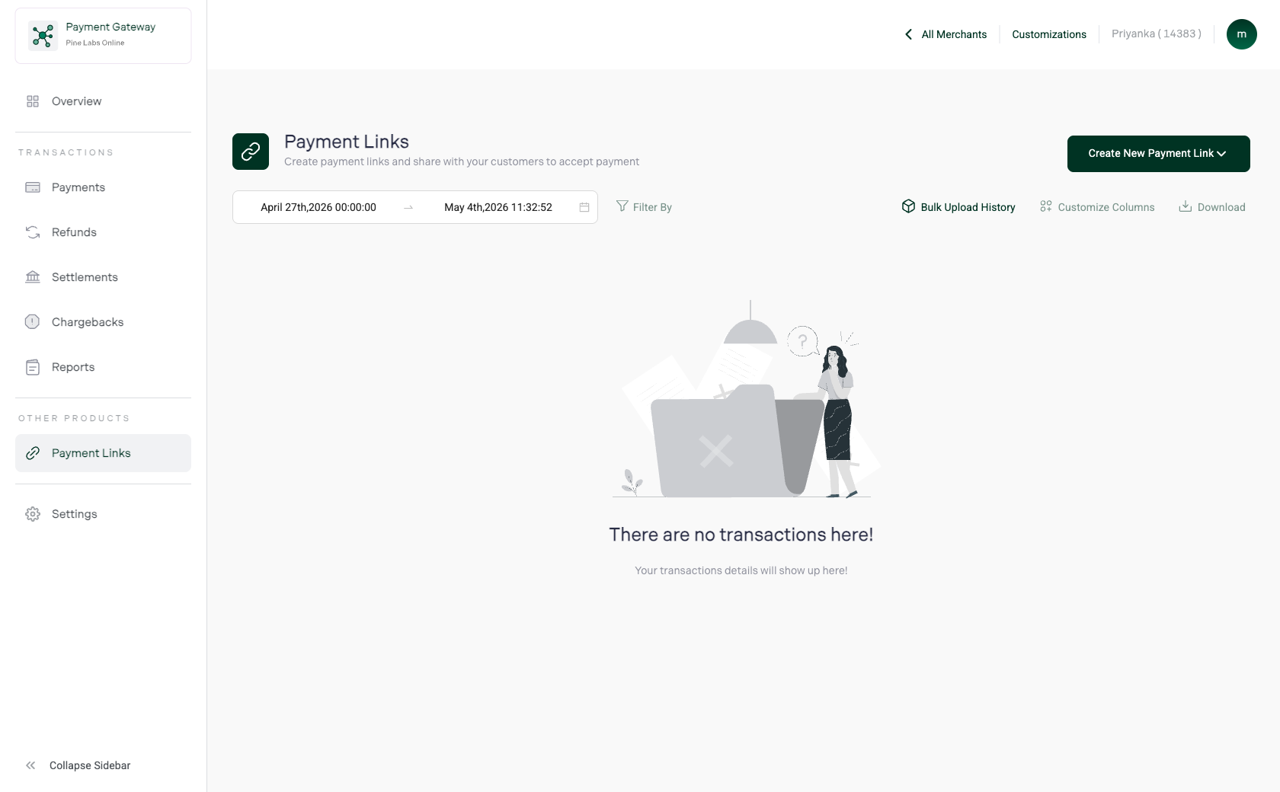
Step 1 — Click "Create Payment Link"
From the Payment Links page, click the Create Payment Link button in the top-right corner.
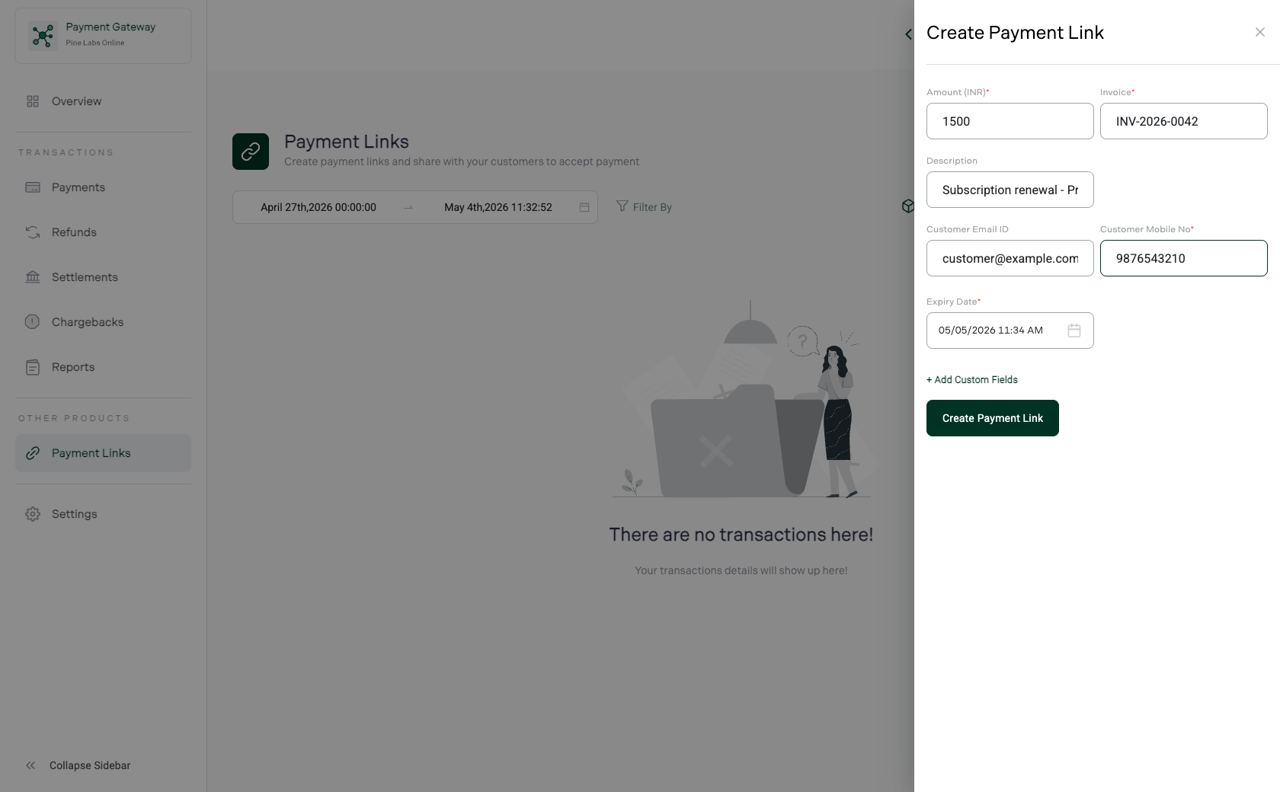
Step 2 — Fill in the details
| Field | Required | Description |
|---|---|---|
| Amount | Yes | Payment amount in INR (e.g., ₹1,500) |
| Description | Yes | What the payment is for (shown to the customer) |
| Customer Name | No | Customer's full name |
| Customer Email | No | Email address — link is auto-sent if provided |
| Customer Phone | No | Mobile number with country code |
| Expiry | No | When the link should expire (default: 24 hours) |
| Merchant Reference | No | Your internal reference number for tracking |
Step 3 — Share the link
After creation, copy the link and share it through your preferred channel:
| Channel | How |
|---|---|
| Copy link | Click the copy icon to copy the URL to clipboard |
| Auto-sent if customer email was provided; or click the email icon | |
| SMS | Click the SMS icon to send via text message |
Tip: Include the payment description and amount in your message for clarity. Customers trust links more when they know what they're paying for.
Payment link list view
The main page shows all your payment links with live status:
| Column | Description |
|---|---|
| Link ID | Unique payment link identifier |
| Description | What the link is for |
| Amount | Payment amount |
| Status | Current link state |
| Created | When the link was created |
| Expiry | When the link expires |
| Payments | Number of successful payments received |
| Customer | Customer name, email, or phone |
Payment link statuses
| Status | Meaning |
|---|---|
| Active | Link is live and accepting payments |
| Paid | Payment received successfully |
| Expired | Link has passed its expiry date without payment |
| Cancelled | Link was manually cancelled by the merchant |
| Partially Paid | Partial payment received (if partial payments are enabled) |
Payment link detail view
Click any link row to see full details:
Information displayed
| Section | Details |
|---|---|
| Link summary | Link ID, amount, description, status, created/expiry dates |
| Link URL | Full shareable URL with copy button |
| Customer info | Name, email, phone (if provided) |
| Payment details | Order ID, payment method, status, timestamp (once paid) |
| Sharing history | Channels through which the link was shared |
From here you can
- Copy the link — reshare if needed
- Cancel the link — if no longer needed (only for Active links)
- View the payment — click the Order ID to go to the Payments detail page
- Issue a refund — if payment was received and needs to be refunded
Search and filter payment links
Quick search
- Link ID — Payment link identifier
- Description — Keyword in the link description
- Customer email / phone — Find all links for a customer
Filters
| Filter | Options |
|---|---|
| Date range | Created date range |
| Status | Active, Paid, Expired, Cancelled |
| Amount range | Minimum and maximum amount |
Cancel a payment link
To cancel an active link:
- Find the link in the list or search by Link ID
- Open the link detail page
- Click Cancel Link
- Confirm the cancellation
Note: Only Active links can be cancelled. Once cancelled, the link URL shows an expiry/cancellation message to anyone who clicks it.
Resend a payment link
If the customer didn't receive or lost the link:
- Open the link detail page
- Click Resend
- Choose the channel: Email, SMS, or WhatsApp
- The link is sent again to the customer's registered contact
Export payment link data
- Apply filters (date range, status)
- Click Export → CSV or Excel
- Download includes all link details and payment status
Export fields
| Field | Description |
|---|---|
| Link ID | Unique link identifier |
| Description | Payment description |
| Amount | Link amount |
| Status | Active, Paid, Expired, Cancelled |
| Customer Name | Customer name |
| Customer Email | Contact email |
| Customer Phone | Contact phone |
| Created At | Creation timestamp |
| Expiry | Expiry date/time |
| Paid At | Payment completion time (if paid) |
| Order ID | Linked order ID (if paid) |
| Payment Method | How the customer paid (if paid) |
| Merchant Reference | Your internal reference |
Use cases
| Scenario | How to use payment links |
|---|---|
| Invoicing | Create a link for each invoice, include invoice number in description |
| Phone orders | Take order over phone, send payment link via SMS |
| Event registrations | Create links per event, share in event listings |
| Donations | Fixed or custom-amount links for fundraising |
| Field sales | Sales team sends links on the spot from the Dashboard |
→ See Accept payments via payment links for detailed use case walkthroughs
FAQs
Can a payment link be used more than once?
By default, a payment link is for a single payment. Once paid, it cannot be used again. For recurring collections, use Subscriptions.
What happens when a link expires?
Expired links show a "This link has expired" message to the customer. You can create a new link and share it with the customer.
Can I create a link without a fixed amount?
The Dashboard currently requires a fixed amount. For variable-amount links (like donations), use the Payment Links API with appropriate configuration.
Which payment methods are available on a payment link?
Payment links support all your enabled payment methods — Cards, UPI, Netbanking, Wallets, EMI, and BNPL. The methods shown to the customer depend on your Settings configuration.
Can I customise the checkout page for payment links?
Yes. Payment links use the Hosted Checkout page. Customise it from Settings → Checkout Customisation (add your logo, brand colours, and business name). See Customize checkout for payment links.