
Accept Payments via Payment Links
Collect payments by sharing a link — no website, no code, no integration needed.
Share a link — collect a payment. Accept payments from anyone, anywhere, without writing a single line of code...
What you're building
By the end of this guide, you'll be able to:
- Create payment links from the Dashboard or API
- Share them via Email, SMS
- Track payment status and manage collections
- Handle post-payment workflows
Time to first payment: ~2 minutes (Dashboard) or ~10 minutes (API)
Before you begin
| Requirement | Details |
|---|---|
| Pine Labs account | Sign up → |
| For Dashboard method | Just a browser — no code needed |
| For API method | Backend server + API credentials |
When to use Payment Links
Payment Links are ideal when you:
| Scenario | Example |
|---|---|
| No website | Freelancers, consultants, small businesses |
| Invoice follow-ups | Send a payment link with a reminder email |
| Event ticketing | Share a link for registrations and ticket sales |
| Quick collections | Collect deposits, dues, or ad-hoc payments |
| Remote services | Telemedicine, online tutoring, consulting |
Method 1: Create from Dashboard (No code)
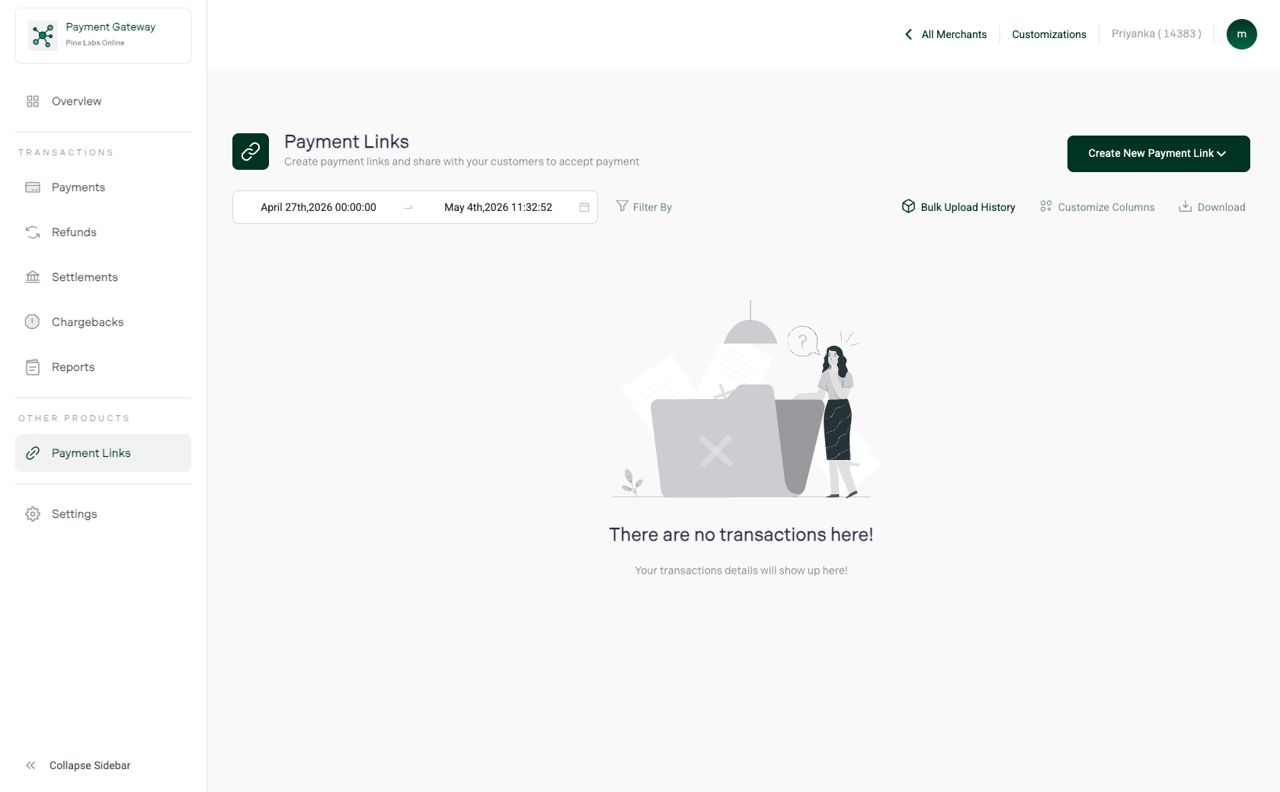
Step 1 — Open Payment Links
- Log in to the Pine Labs Dashboard
- Navigate to Payment Links in the sidebar
Step 2 — Create a new link
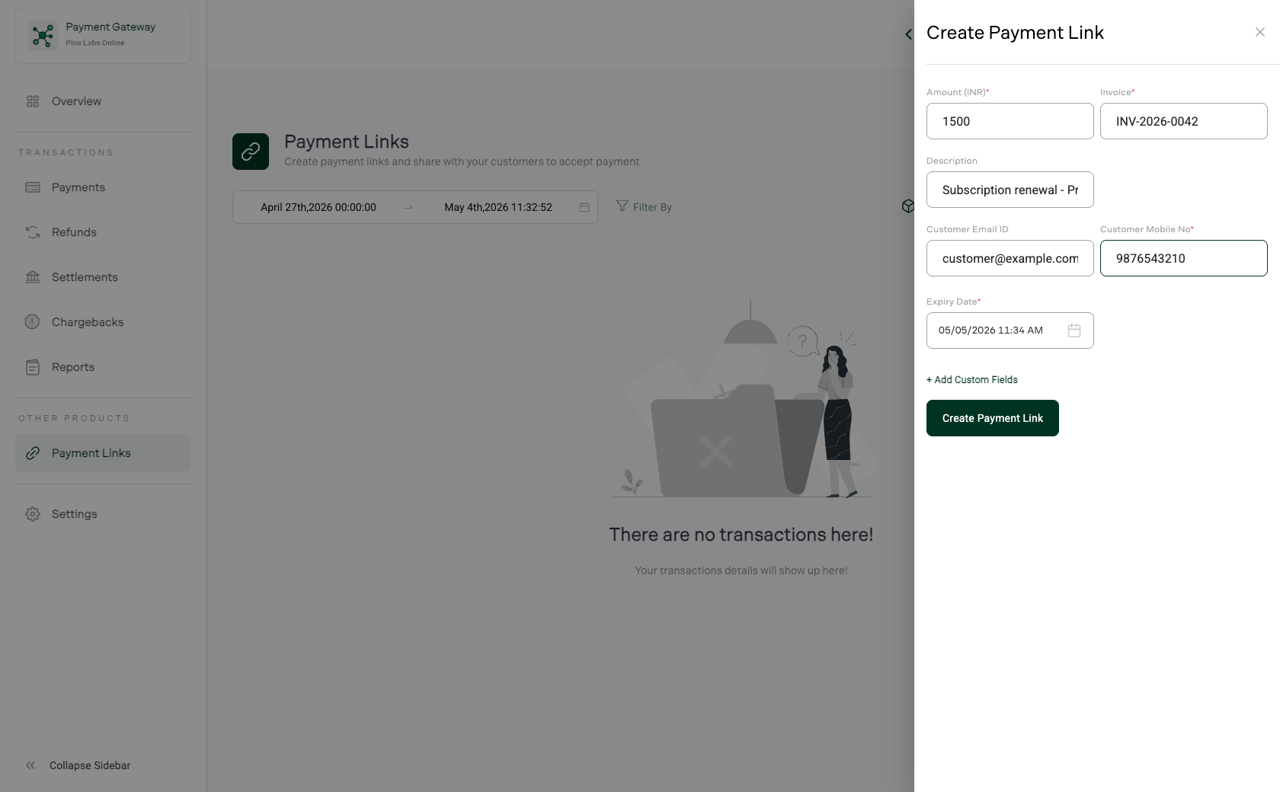
Click Create Payment Link and fill in the details:
| Field | Example | Required |
|---|---|---|
| Amount | ₹2,500 | Yes |
| Description | "Design consultation — April 2026" | Yes |
| Customer name | Rahul Sharma | Optional |
| Customer email | rahul@example.com | Optional |
| Customer phone | 9876543210 | Optional |
| Expiry | 7 days | Optional |
Step 3 — Share the link
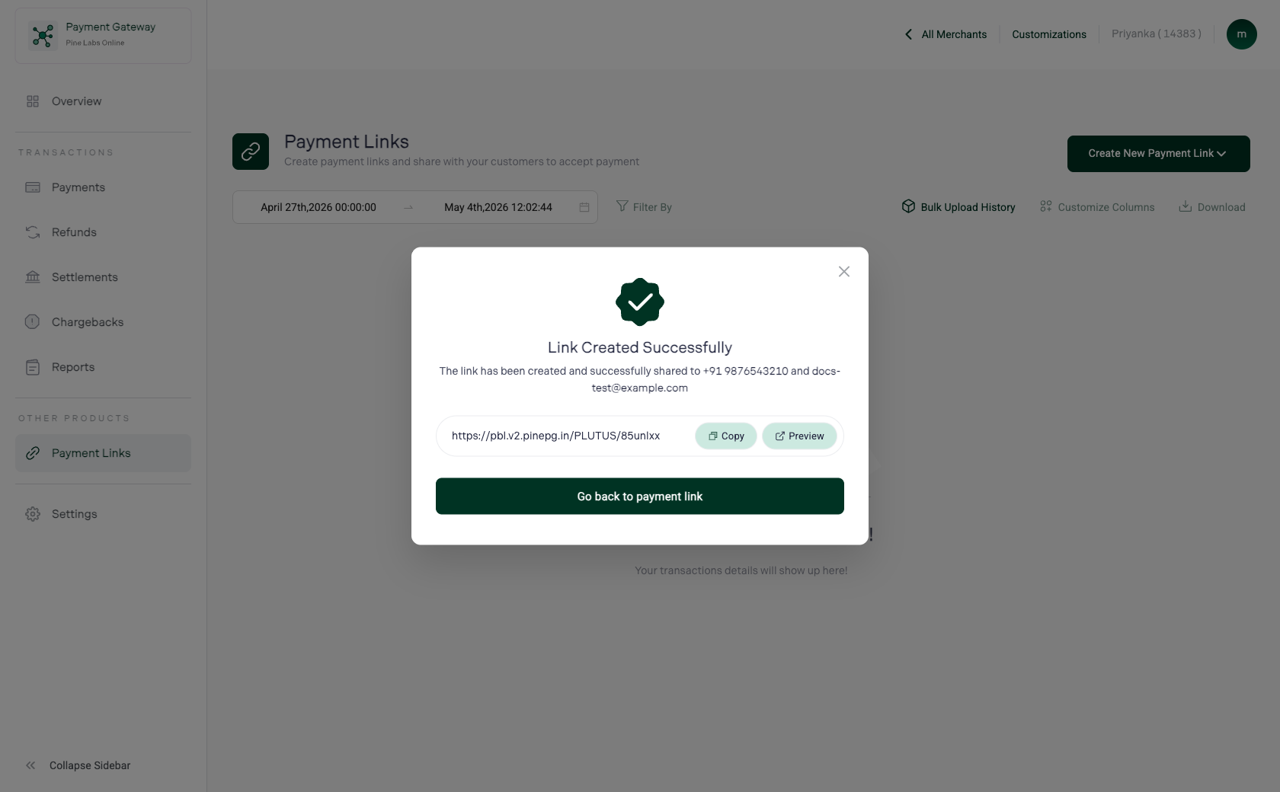
After creation, you get a shareable URL:
https://pay.pluralonline.com/link/abc123xyz
Share it through any channel:
| Channel | How |
|---|
| Email | Use the built-in email option or copy-paste | | SMS | Copy the link and send via SMS |
Step 4 — Customer pays
When the customer opens the link, they see a Pine Labs checkout page with:
- Order details and amount
- Payment options — Cards, UPI, Netbanking, Wallets
- Secure payment processing
Step 5 — Track payment
Monitor the payment status in Dashboard → Payment Links:
| Status | Meaning |
|---|---|
| Created | Link generated, awaiting payment |
| Partially paid | Customer made a partial payment |
| Paid | Payment received successfully |
| Expired | Link crossed the expiry date |
| Cancelled | You cancelled the link |
Method 2: Create via API
For automated workflows, use the Payment Links API.
Generate token
curl --location 'https://pluraluat.v2.pinepg.in/api/auth/v1/token' \
--header 'content-type: application/json' \
--data '{
  "client_id": "<your_client_id>",
  "client_secret": "<your_client_secret>",
  "grant_type": "client_credentials"
}'
Create payment link
curl --location 'https://pluraluat.v2.pinepg.in/api/pay/v1/payment-links' \
--header 'Authorization: Bearer <access_token>' \
--header 'Content-Type: application/json' \
--data '{
  "merchant_payment_link_reference": "INV-2026-04-001",
  "payment_link_amount": {
    "value": 250000,
    "currency": "INR"
  },
  "description": "Design consultation — April 2026",
  "customer": {
    "email_id": "rahul@example.com",
    "first_name": "Rahul",
    "last_name": "Sharma",
    "mobile_number": "9876543210",
    "country_code": "91"
  },
  "expiry_date": "2026-05-06T23:59:59Z",
  "callback_url": "https://your-domain.com/payment/success",
  "notes": "April consulting invoice"
}'
Response:
{
  "payment_link_id": "pl_abc123xyz",
  "payment_link_url": "https://pay.pluralonline.com/link/abc123xyz",
  "status": "CREATED",
  "expiry_date": "2026-05-06T23:59:59Z"
}
Check payment link status
curl --location 'https://pluraluat.v2.pinepg.in/api/pay/v1/payment-links/{payment_link_id}' \
--header 'Authorization: Bearer <access_token>'
Cancel a payment link
curl --request PUT \
'https://pluraluat.v2.pinepg.in/api/pay/v1/payment-links/{payment_link_id}/cancel' \
--header 'Authorization: Bearer <access_token>'
After receiving payment
Dashboard notifications
- View payment details in Dashboard → Payments
- Download payment receipts
- Issue refunds directly from the Dashboard
Webhook notifications
Configure webhooks to receive real-time notifications:
{
  "event": "ORDER_CAPTURED",
  "data": {
    "order_id": "v1-2505051234-aa-xYzAbC",
    "payment_link_id": "pl_abc123xyz",
    "amount": { "value": 250000, "currency": "INR" },
    "status": "CAPTURED"
  }
}
Refunds
Issue full or partial refunds from the Dashboard or API:
- Go to Dashboard → Payments
- Find the payment and click Refund
- Enter the refund amount and confirm
Real-world examples
Freelance designer
"I send a Payment Link in my project proposal email. Clients click, pay the deposit, and I start work — no invoicing software needed."
Setup: Create a link for the project deposit → Share via email → Track in Dashboard
Fitness instructor
"I share a monthly class link on my Instagram story. Students tap, pay, and they're registered."
Setup: Create a recurring link for class fees → Share via SMS → Monitor collections
Property rental agent
"I generate links for security deposits and rent payments. Tenants pay via UPI — it's instant."
Setup: Create individual links per tenant → Share via email → Get webhook on payment
Next steps
- Payment Links — detailed guide — full API documentation
- Accept payments on a website or mobile app — embed checkout in your product
- Dashboard — track and manage all payments