
Manage Payment Refunds Via Dashboard
Learn how to process and manage refunds on the Pine Labs Online dashboard.
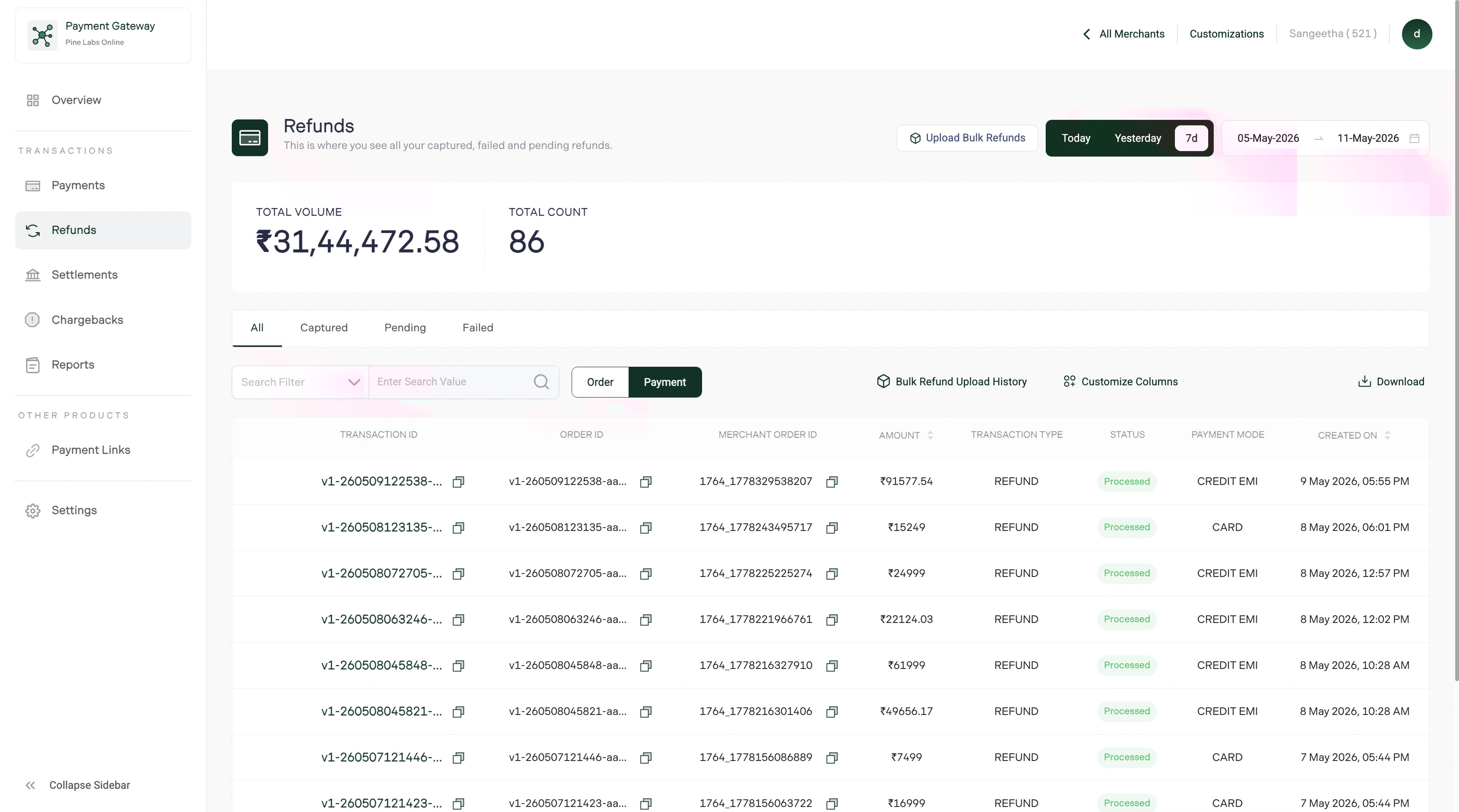
The Refunds section lets you initiate, track, and manage all refund operations for your Pine Labs Online transactions. Whether it's a full refund, partial refund, or a batch of returns — everything is visible in one place.
You can initiate a refund for the captured payment against an order from the dashboard. This could be done from the payments section where all the orders are listed. Use our Refunds section to manage your refunds and create a bulk refund.
Real-Time Tracking: You can monitor all the refunds initiated from your account in the refund section of the dashboard. Once a refund is initiated, it immediately appears in the transaction history, allowing you to track its progress in real time.
Refund Order ID: Pine Labs generates a refund order ID for each transaction, making it easy for you to track and reconcile the refund request.
📘 Note:
- The refunds tab will be visible on the Dashboard once you initiate a refund.
Refund Options
Listed below are the refund options available through the Pine Labs dashboard.
- Partial Refund: To initiate a partial refund, you must enter the amount that needs to be refunded against an order.
- Full Refund: You can also initiate a full refund against an order based on your customer request and business.
📘 Note:
- Before a refund is processed, a confirmation popup will appear, allowing you to review the refund details.
- Refunds are initiated instantly, but the time taken for the amount to reach back the customer's account depends on the payment method and the bank's processing time.
Refer to our Refund Life Cycle documentation to learn more about refund statuses.
Refund list view
The Refunds page displays all refund transactions with key details:
| Column | Description |
|---|---|
| Refund ID | Unique identifier for the refund |
| Order ID | Original order this refund is linked to |
| Merchant Reference | Your internal order reference |
| Refund Amount | Amount being refunded |
| Original Amount | Total amount of the original transaction |
| Status | Current refund state |
| Initiated Date | When the refund was created |
| Completed Date | When the refund was processed to the customer |
Initiate a refund
From the Refunds page
- Click Create Refund on the Refunds page
- Enter the Order ID or Merchant Reference of the original transaction
- Choose Full Refund or Partial Refund
- For a partial refund, enter the refund amount
- Add a reason (optional but recommended for record-keeping)
- Click Submit
From a transaction detail
- Go to Payments and open the transaction
- Click Initiate Refund in the actions area
- Follow the same full/partial refund flow
Tip: Initiating from the transaction detail page automatically fills in the Order ID and shows you the available refundable amount.
Full vs partial refunds
| Type | When to use | Example |
|---|---|---|
| Full refund | Customer cancels the entire order | ₹2,000 order → ₹2,000 refund |
| Partial refund | One item returned, or partial discount applied | ₹2,000 order → ₹500 refund for 1 returned item |
Multiple partial refunds
You can issue multiple partial refunds on the same transaction, as long as the total refunded amount doesn't exceed the original payment amount:
Original payment:     ₹5,000
Partial refund #1:    ₹1,000   (remaining: ₹4,000)
Partial refund #2:    ₹2,500   (remaining: ₹1,500)
Partial refund #3:    ₹1,500   (remaining: ₹0 — fully refunded)
Refund detail view
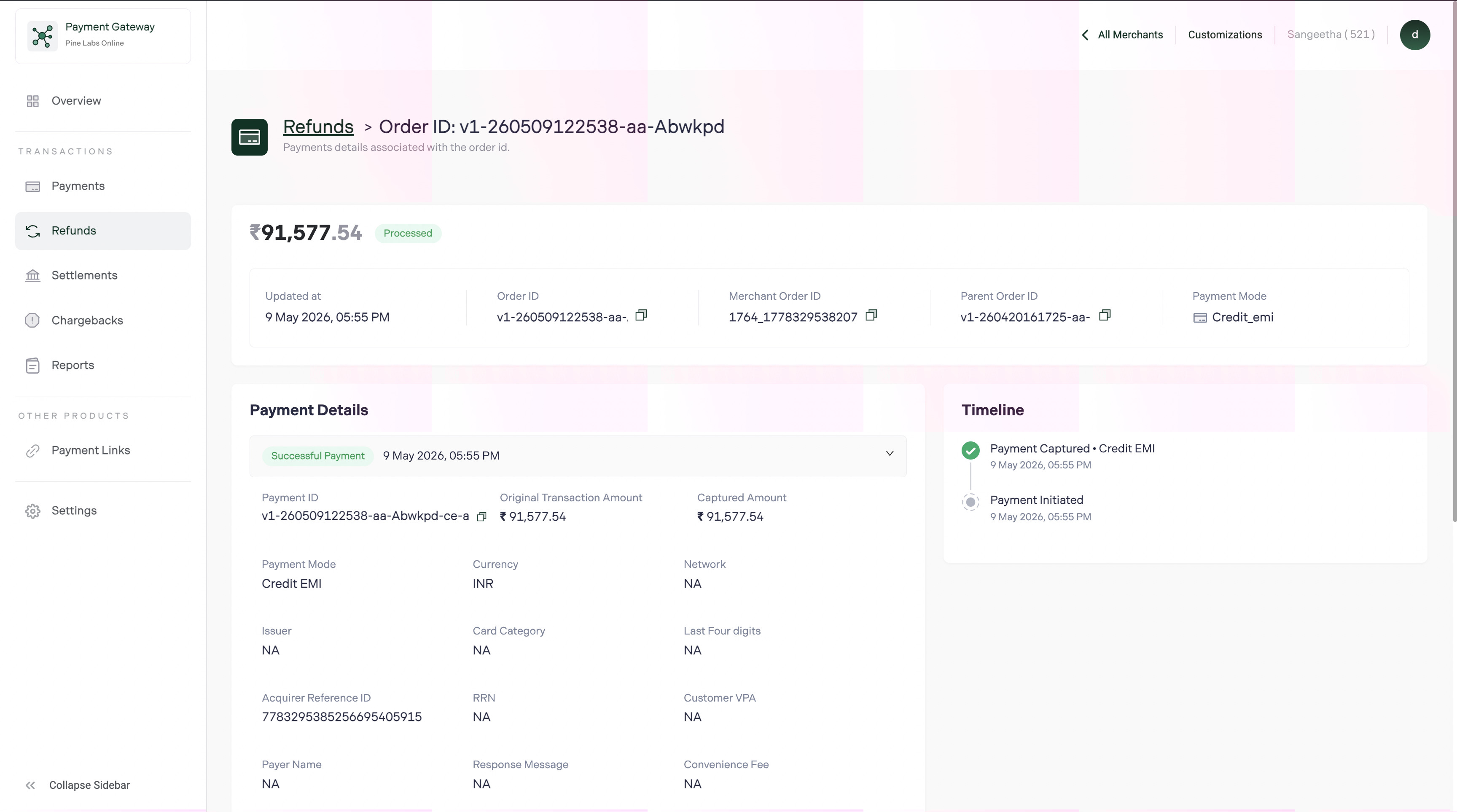
Click any refund row to see complete details:
| Section | Information |
|---|---|
| Refund summary | Refund ID, amount, status, created date, completed date |
| Original transaction | Order ID, payment amount, payment method, capture date |
| Customer info | Name, email, phone — who receives the refund |
| Timeline | Event log: initiated → processing → completed |
| Reason | Why the refund was issued |
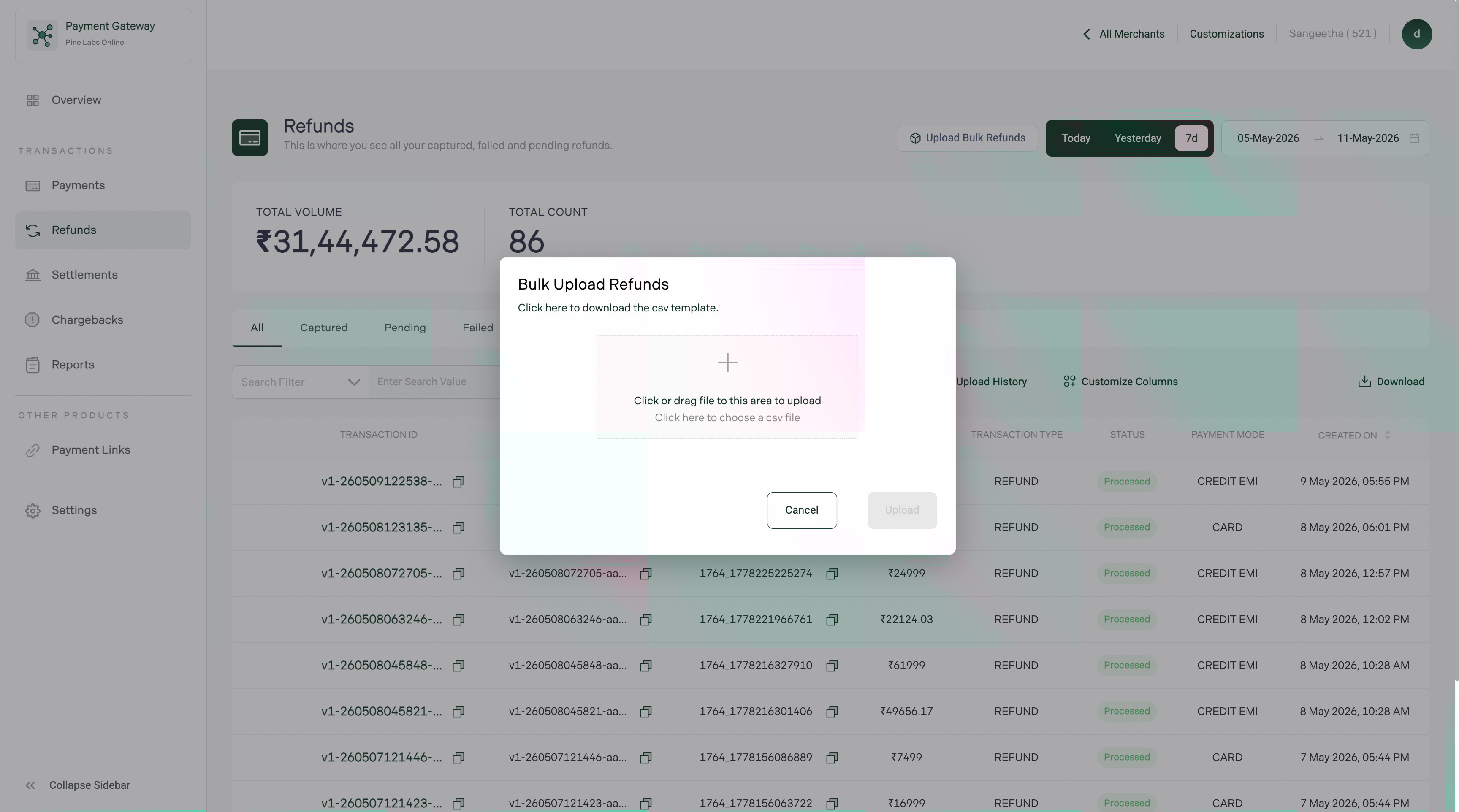
Export refund data
- Apply filters to select the date range and status
- Click Export in the top-right corner
- Choose CSV or Excel
- The file downloads with all refund details
Export fields
| Field | Description |
|---|---|
| Refund ID | Pine Labs refund identifier |
| Order ID | Original order reference |
| Merchant Reference | Your internal reference |
| Refund Amount | Amount refunded |
| Original Amount | Total payment amount |
| Refund Type | Full or Partial |
| Status | Initiated, Processing, Completed, Failed |
| Payment Method | How the customer originally paid |
| Reason | Refund reason |
| Initiated At | Refund creation timestamp |
| Completed At | When refund was processed |
FAQs
Can I cancel a refund after it's been initiated?
Once a refund is initiated, it cannot be cancelled. Ensure you verify the amount and order before confirming.
What happens if a refund fails?
If a refund fails, the amount is not deducted from your settlement balance. You can retry the refund from the Dashboard. Check the failure reason in the refund detail page — common causes include closed bank accounts or expired cards.
Is there a time limit for issuing refunds?
Refunds can typically be issued within 180 days of the original transaction. After this period, reach out to your Pine Labs account manager for assistance.
Can I issue a refund larger than the original amount?
No. The total refunded amount (including previous partial refunds) cannot exceed the original captured amount.
How does a refund affect my settlement?
Refund amounts are deducted from your next settlement. If the refund exceeds your pending settlement balance, the remaining amount is deducted from subsequent settlements. See Settlements for details.