
Manage Brand Wallets via Dashboard
Create customer wallets, load balances, issue instant refunds, and track wallet activity from the Pine Labs Online Dashboard.
Brand Wallet dashboard controls allow you to create customer wallets, load wallet balances, issue refunds to Brand Wallet, and track all wallet-related activity through dashboard tables, reports, and webhooks.
Accept Brand Wallet Payments How Brand Wallet WorksKey Features
Create Wallet Customers at Scale
Create customer wallets in bulk directly from the Pine Labs Online Dashboard.
Best used for : Customer onboarding, migration, or creating wallets for a large customer base.
Dashboard path : Pine Labs Online Dashboard → Brand Wallet → Create Wallet
Load Money into Wallets
Credit balances into existing customer wallets using bulk file upload.
Supported wallet buckets : Cash, Refund, Cashback, Promo
Dashboard path : Pine Labs Online Dashboard → Brand Wallet → Money Load
Refund Orders to Brand Wallet
Refund customer orders directly into Brand Wallet from the order refund screen.
Best used for : Instant refunds that customers can use immediately for their next purchase.
Dashboard path : Pine Labs Online Dashboard → Payments → Select Order → Create Refund
Track Wallet Activity
Monitor wallet creation, money load, and refund activity through dashboard tables, downloadable reports, and webhooks.
Available tracking : Batch status, success count, failure count, uploader details, timestamps, and execution reports.
Dashboard Actions
Through the Pine Labs Online Dashboard, you can perform the following Brand Wallet actions. The cards below represent the key actions available to you.
Create Wallet
Create customer wallets in bulk by uploading a CSV or XLS file.
Primary action : Create Wallet
Secondary action : Download sample file
Status shown: Processed, Processing, Failed
Money Load
Load money into existing customer wallets across Cash, Refund, Cashback, or Promo buckets.
Primary action : Money Load
Secondary action: Download execution report
Status shown : Success count, failure count, batch status
Refund to Wallet
Refund customer orders instantly into Brand Wallet from the order refund screen.
Primary action : Create Refund
Refund options : Add it to Brand Wallet, Send it to source
Reports & Webhooks
Track wallet creation and money load results through downloadable reports and webhooks.
Primary action : View reports
Available data : Batch status, upload details, success/failure count, and failure reasons
Create Wallet
Create Wallet allows merchants to create wallet customers in bulk by uploading a CSV or XLS file from the dashboard.
Navigation : Login to Pine Labs Online Dashboard → Brand Wallet → Create Wallet
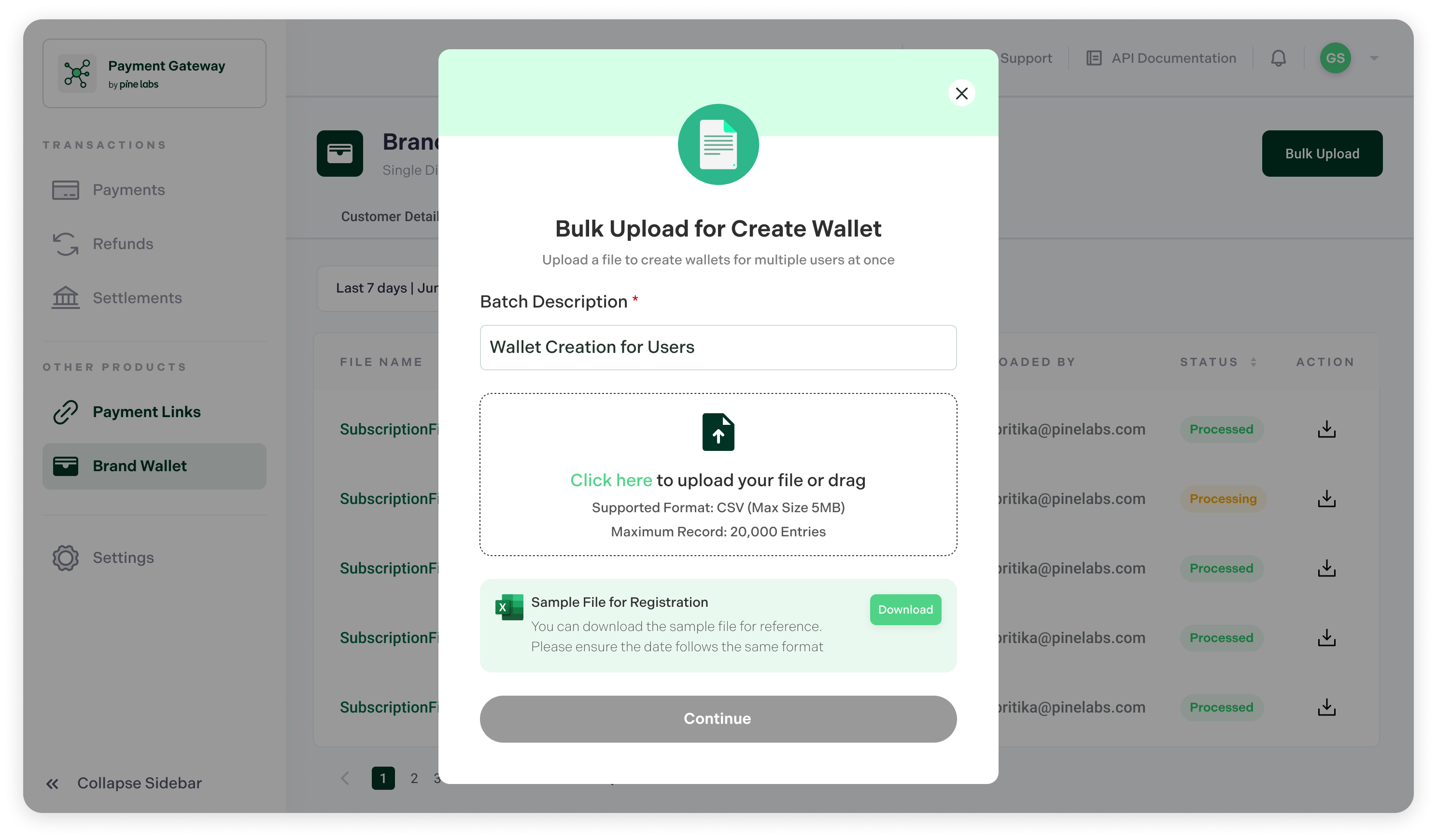
Step 1: Upload Document
You can upload your customer details in bulk for bulk wallet creation.
-
Click Create Wallet to create wallets for your customers.
-
Upload file formats :
CSVorXLS
The uploaded file should contain the below customer fields listed in the table.
| Field | Description |
|---|---|
| First Name | Customer’s first name |
| Last Name | Customer’s last name |
| Mobile / Email | Wallet identifier |
Actions avialable while uploading the file are listed below.
| Action | Description |
|---|---|
| Upload file | Upload a CSV/XLS file with customer details |
| Download sample file | Download the sample format for reference |
📘 Note:
- You can create customer wallets first and load money later.
Step 2: Uploaded File Status
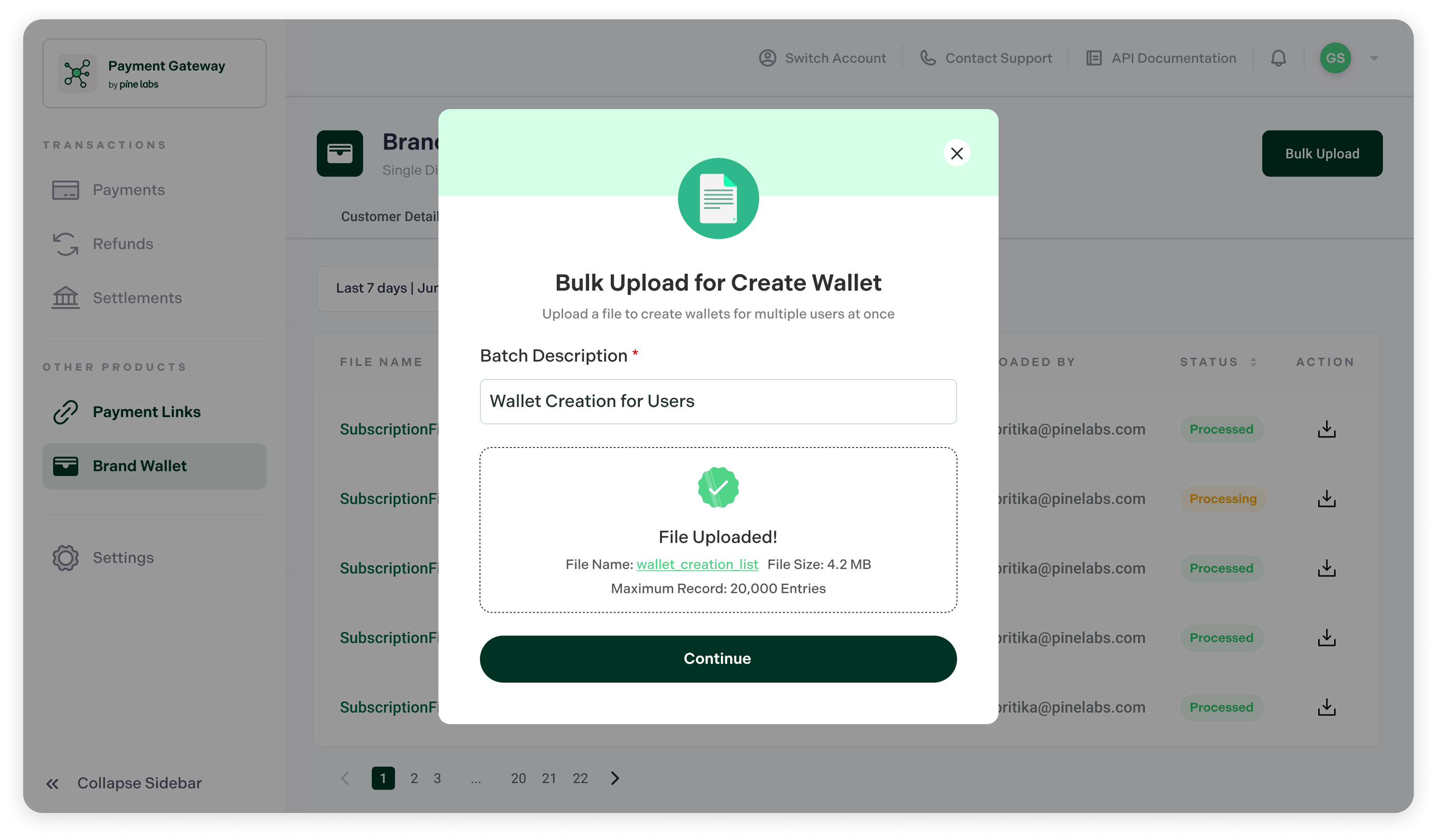
After the file is uploaded, the system validates the file and displays the below listed details.
| Detail | Description |
|---|---|
| File name | Name of the uploaded file |
| Record count | Number of records detected in the file |
Next action:
Click Continue to submit the file for processing.
After submission, the system validates and creates wallets asynchronously.
Status message:
File received | Processing underway
User guidance:
You can click Continue and exit from this screen. Wallet creation continues in the background.
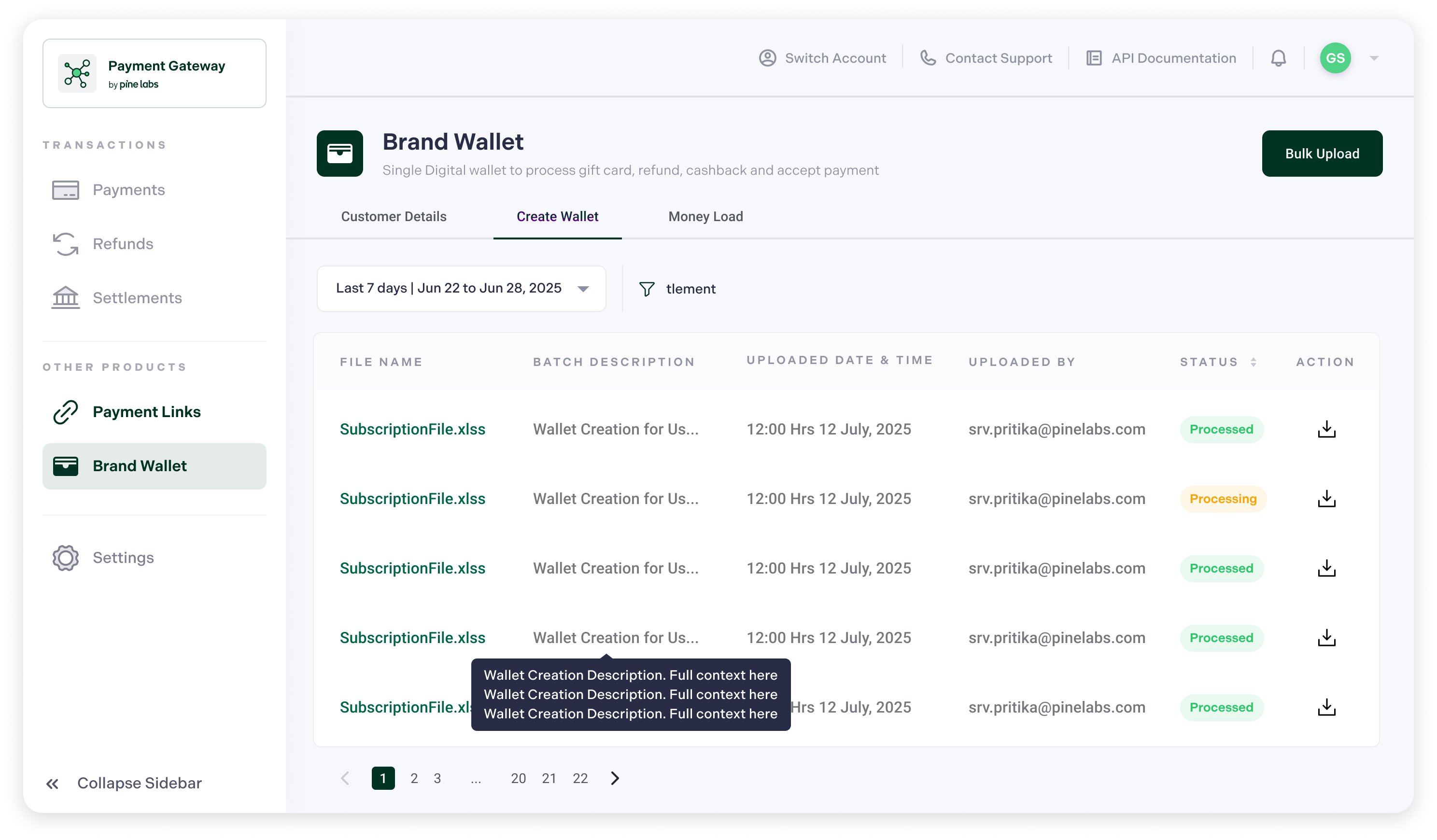
Step 3: Check Wallet Creation
Navigation : Brand Wallet → Create Wallet
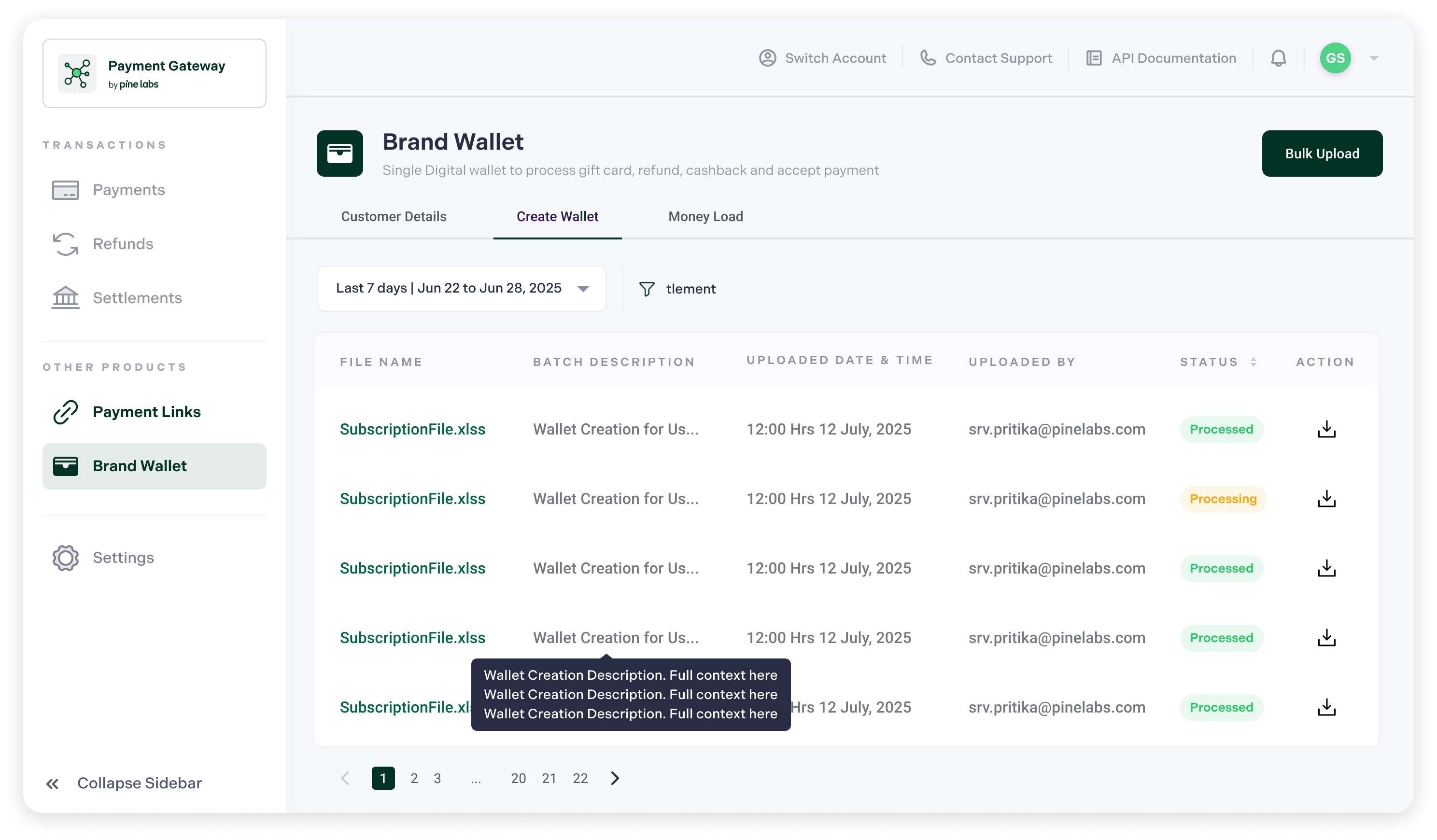
This table shows all uploaded wallet creation batches and the table details listed below.
| Field | Description |
|---|---|
| File name | Uploaded file name |
| Batch description | Description of the uploaded batch |
| Upload date | Date and time of file upload |
| Uploaded by | User who uploaded the file |
| Processing status | Current status of the batch |
Expected statuses:
| Status | Meaning |
|---|---|
| Processed | Wallet creation completed |
| Processing | File is currently being processed |
| Failed | File processing failed. Reason is displayed |
Wallet creation results are also available through reports and webhooks.
Error Handling
| Scenario | System Behaviour |
|---|---|
| Unable to upload file | Error is shown and retry is enabled |
| Empty file uploaded | Inline validation error is displayed |
| Incorrect file format | Exact reason is displayed |
| Partial failures | Valid rows are processed, failed rows are skipped |
Load Money to Wallets
Money Load allows merchants to credit balances into existing customer wallets in bulk.
Navigation : Dashboard → Brand Wallet → Money Load
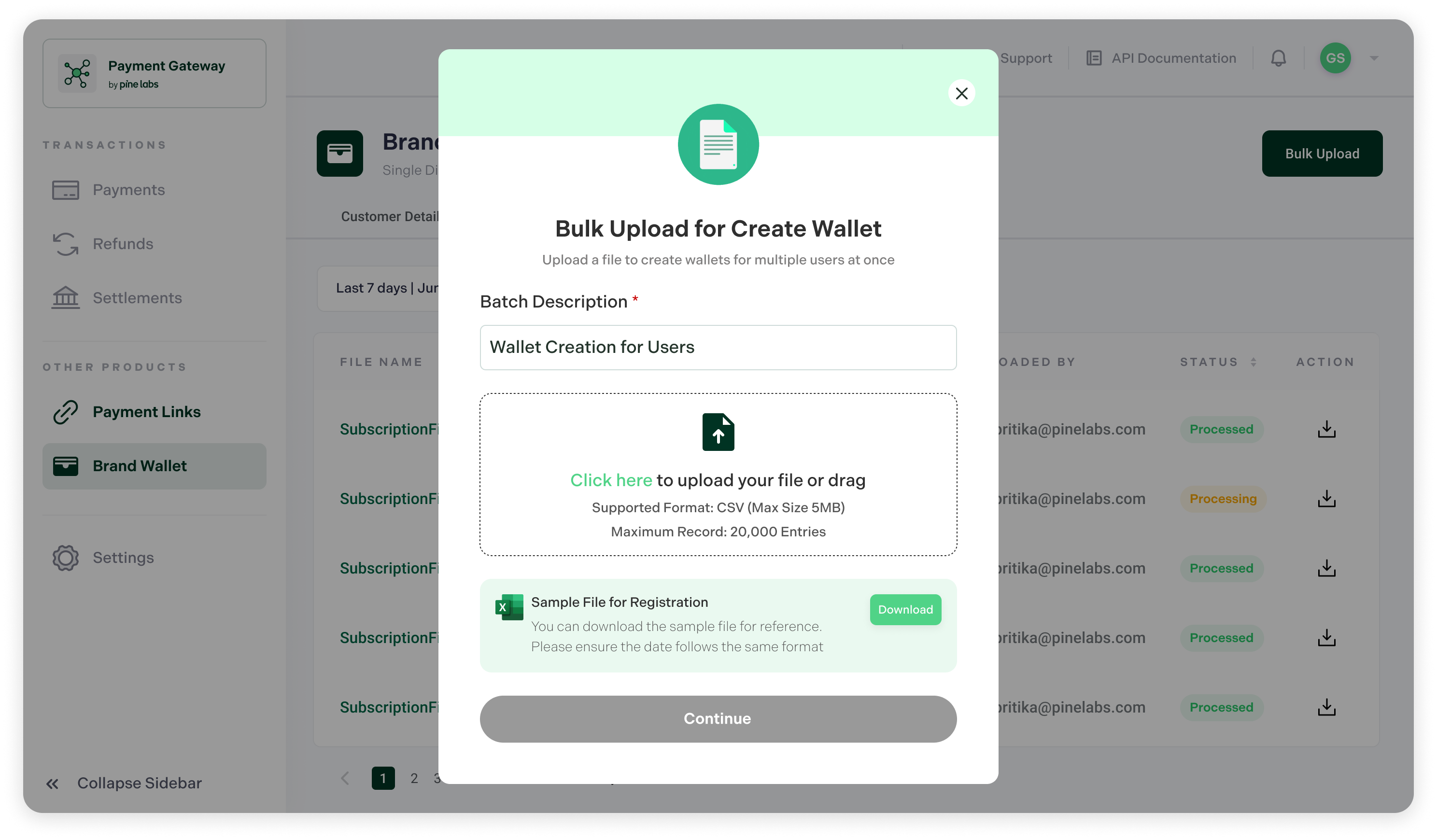
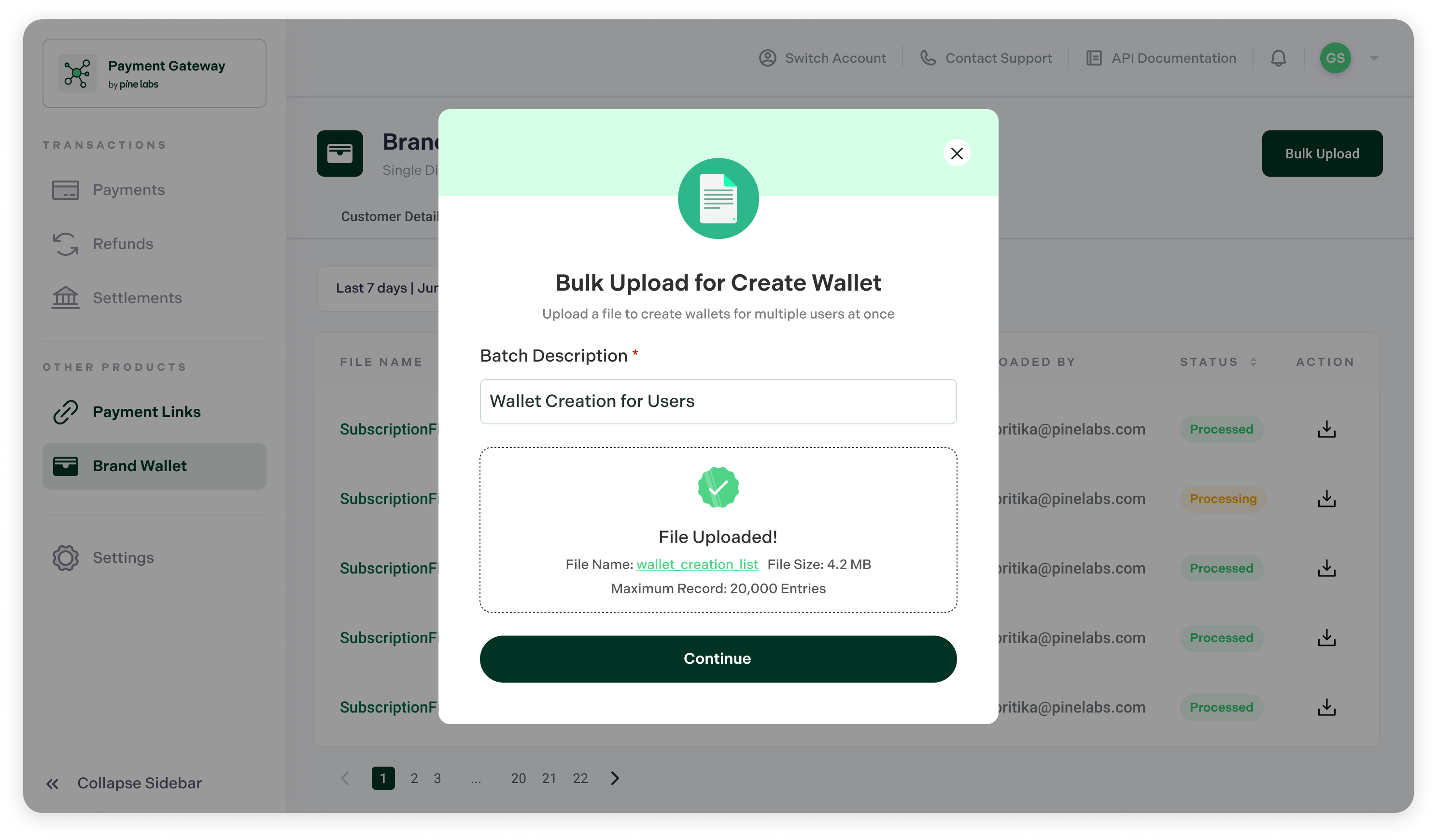
Step 1: Upload Document
In this step upload wallet load details.
- Click Money Load and upload the file. Ensure to share the below listed file details in the file:**
| Field | Description |
|---|---|
| Mobile | Customer wallet identifier |
| Amount | Amount to be credited |
| Bucket type | Cash, Refund, Cashback, or Promo |
| Merchant customer reference | Optional customer reference |
Step 2: Uploaded File Status
After upload, the system validates the file.
_ Review the uploaded file details and proceed.
- System behaviour : File validation is completed before processing begins. Wallet load requests are processed asynchronously.
| Action | Description |
|---|---|
| Wallet credit | Money is credited to the respective wallet bucket |
| Customer notification | Notifications are sent to customers if enabled |
| Background processing | User can exit the screen while processing continues |
Step 3: Check Money Load
Navigation : Brand Wallet → Money Load
This table shows all wallet load batches and the below listed table details.
| Field | Description |
|---|---|
| Batch status | Current processing status |
| Success count | Number of successful wallet loads |
| Failure count | Number of failed wallet loads |
| Timestamp | Upload or processing timestamp |
| Uploaded by | User who uploaded the file |
| Execution report | Downloadable report for the upload |
Error Handling
| Scenario | System Behaviour |
|---|---|
| Empty file | Inline validation error is displayed |
| Invalid amount | Error is displayed for invalid amount rows |
| Incorrect wallet identifier | Invalid identifier rows are skipped or marked failed |
| Format mismatch | Exact reason is displayed |
| Failed upload | Retry is allowed |
Refund to Brand Wallet
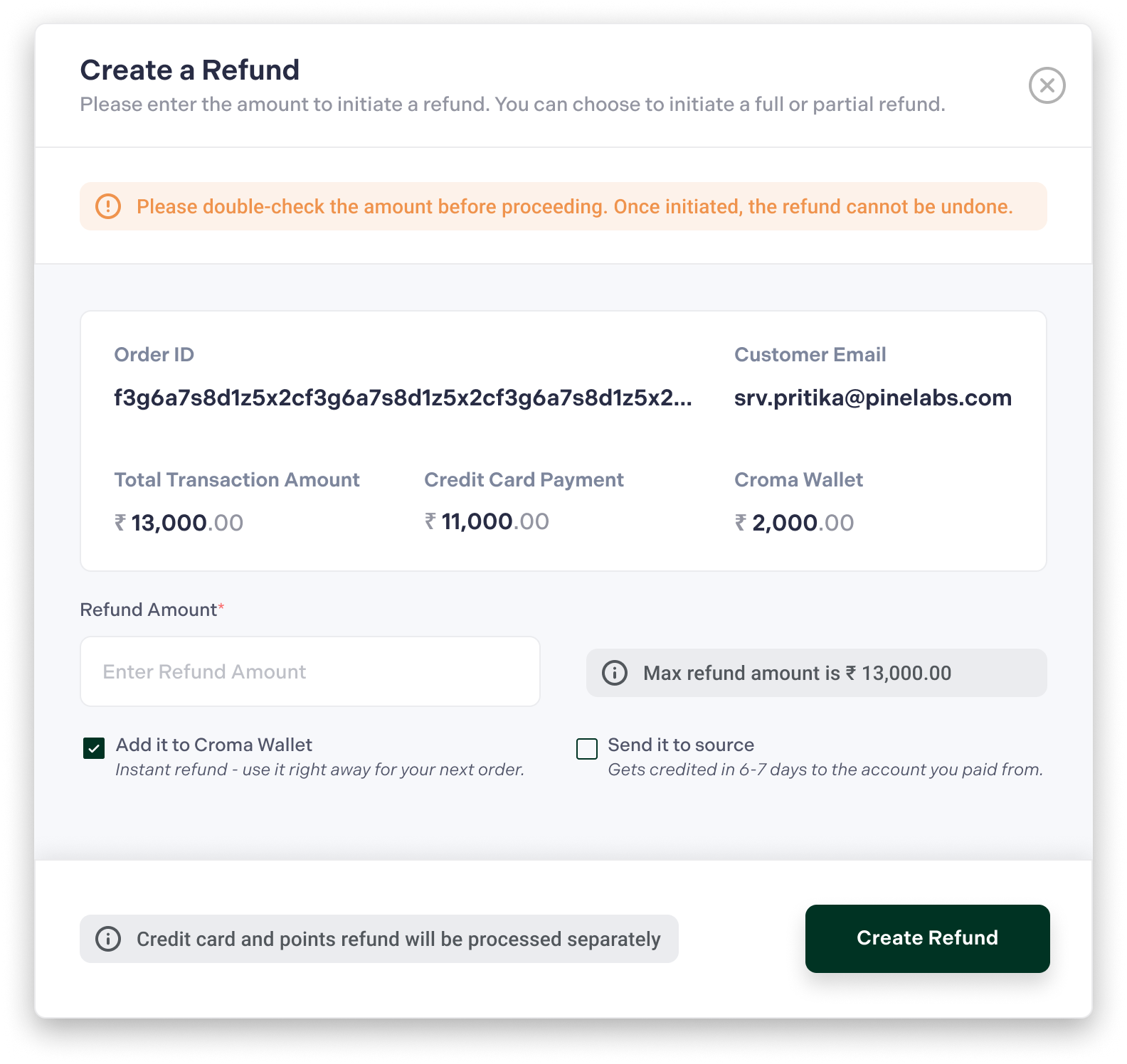
Refund to Brand Wallet allows you to refund your customer orders directly into the customer’s Brand Wallet from the dashboard.
Navigation : Dashboard → Payments → Select Order → Create Refund
The below table shows the list of details displayed:
| Field | Description |
|---|---|
| Order ID | Unique order reference |
| Customer email | Customer email linked to the order |
| Total transaction amount | Total amount paid for the order |
| Payment breakup | Split of payment modes used |
| Card / UPI amount | Amount paid through Card or UPI |
| Wallet amount | Wallet amount used, if applicable |
Refund Options
You can issue refunds to your customers using the following options:
Add it to Brand Wallet
Refund amount is credited instantly to the customer’s Brand Wallet.
| Item | Details |
|---|---|
| Refund speed | Instant |
| Customer usage | Usable immediately for next purchase |
| Refund bucket | Always credited to the Refund bucket |
| Supported refund type | Full and partial refunds |
Send it to Source
Refund amount is credited back to the original payment method.
| Item | Details |
|---|---|
| Refund speed | 3–7 business days |
| Destination | Original payment method |
| Supported refund type | Full and partial refunds |
Important Notes
| Note | Details |
|---|---|
| Wallet refunds are instant | Customer can use the refunded amount immediately |
| Refunds cannot be undone | Once created, a refund cannot be reversed |
| Split payments | Refunds are handled proportionally |
| Wallet refund bucket | Wallet refunds are always credited to the Refund bucket |
| Full and partial refunds | Both refund types are supported |