
After you receive payment from a payment link
Verify payment status, handle webhooks, process refunds, track settlements, and manage pre-authorized and part payments.
After your customer completes a payment through a payment link, you need to verify the payment, fulfill the order, and manage the post-payment lifecycle — including refunds, settlements, and pre-authorization captures.
What happens when a customer pays
When a customer completes payment through a payment link, three things happen:
- Link status updates to
PROCESSED— The payment link is now fulfilled. - Customer is redirected — To your
callback_url(success) orfailure_callback_url(failure). - Webhook fires — If configured, Pine Labs sends a server-to-server notification to your endpoint.
Sign Up on the Dashboard & Get API Credentials
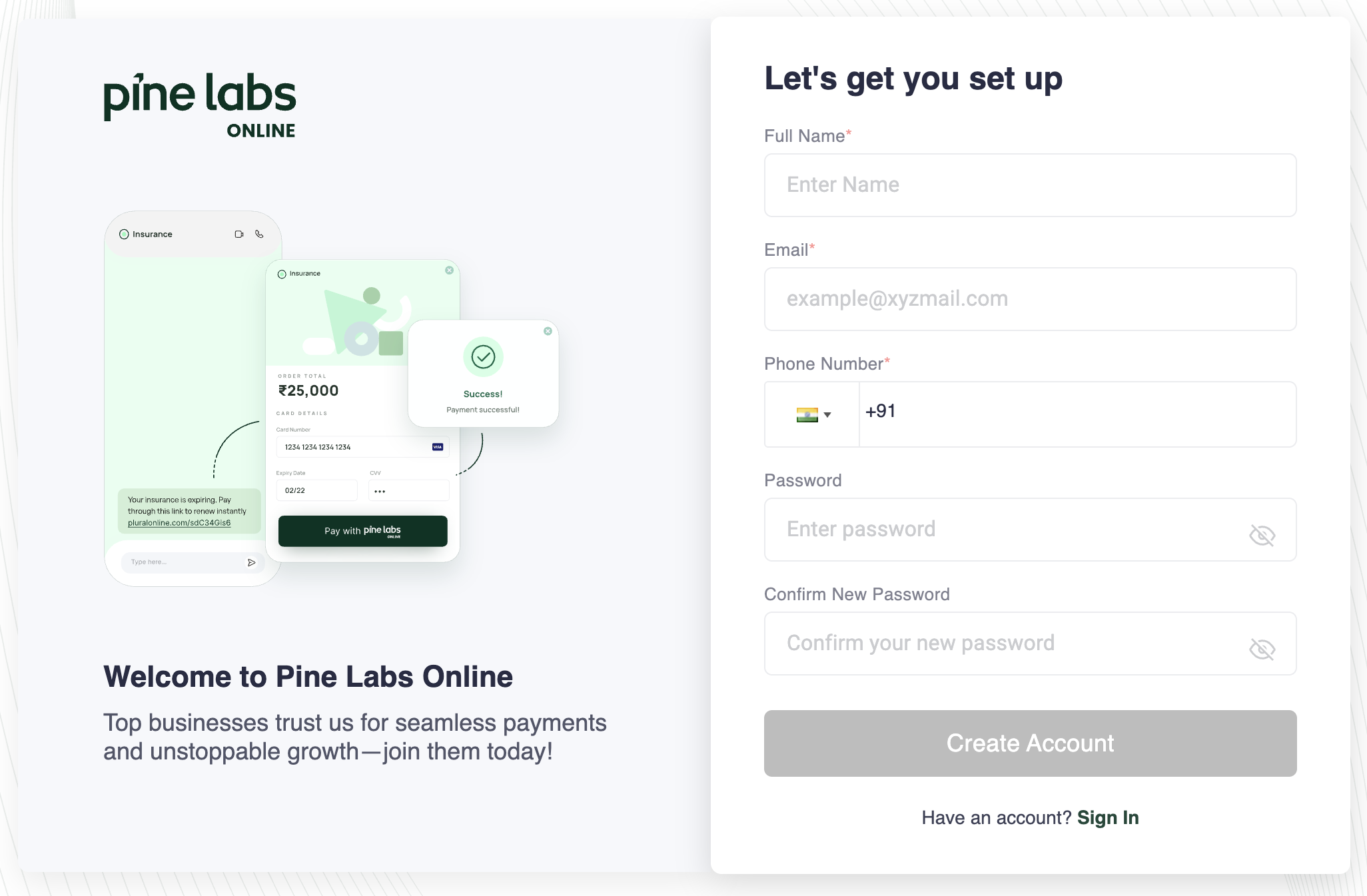
Before you begin integrating, create your free Pine Labs Online developer account to get access to UAT credentials, API keys, and the merchant dashboard.
- Sign Up — Visit the Pine Labs Online Dashboard and register with your business email.
- Verify Your Email — Confirm your email address through the verification link sent to your inbox.
- Find Your Credentials — Once logged in, navigate to Settings → API Keys to generate your test-mode API key and secret.
- Explore the Dashboard — Use the dashboard to view test payments, refunds, settlements, and webhook configurations before going live.
Once your account is ready, you can immediately start integrating hosted checkout, custom checkout, payment links, tokenization, and other Pine Labs Online payment solutions using the UAT environment — no production credentials required.
Verify the payment
Always verify the payment status server-side. Never rely solely on the client-side redirect.
Option 1: Webhooks (recommended)
Set up a webhook endpoint to receive real-time payment notifications.
- Configure your webhook URL in the Dashboard settings.
- Verify the signature — Check the webhook signature to ensure the notification is authentic. See Signature Verification.
- Process the event — Update your order status, trigger fulfillment, or send a confirmation to the customer.
POST https://yoursite.com/webhooks/pinelabs
Content-Type: application/json

{
  "event": "payment_link.processed",
  "data": {
    "payment_link_id": "pl-v1-250306082755-aa-uT0noy",
    "merchant_payment_link_reference": "order_ref_12345",
    "status": "PROCESSED",
    "amount": { "value": 10000, "currency": "INR" },
    "order_id": "v1-250131113650-aa-TUzeRY"
  }
}
📘 Why webhooks?
Webhooks are the most reliable way to confirm payments. They work even if the customer closes their browser before the redirect, or if network issues prevent the callback.
For retry behavior, see Webhook Retries. For the full list of events, see Available Events.
Option 2: API polling
If you haven't set up webhooks, query the payment link status directly:
curl --request GET \
  --url https://pluraluat.v2.pinepg.in/api/pay/v1/paymentlink/{payment_link_id} \
  --header 'Authorization: Bearer <access_token>' \
  --header 'Content-Type: application/json'
Check the status field:
| Status | Meaning | Action |
|---|---|---|
PROCESSED | Payment completed | Fulfill the order |
PAYMENT_INITIATED | Payment in progress | Check again shortly |
CREATED / CLICKED | Customer hasn't paid yet | Wait or follow up |
CANCELLED / EXPIRED | Link is no longer active | Create a new link if needed |
Handle the callback redirect
When the customer is redirected to your URL after payment:
| Scenario | URL used |
|---|---|
| Successful payment | callback_url |
Failed payment (with failure_callback_url set) | failure_callback_url |
Failed payment (no failure_callback_url) | callback_url |
| No URLs configured | Default URL from merchant onboarding |
🚧 Important
The redirect is for the customer experience. Always confirm the payment via webhook or API before processing the order. Do not fulfill orders based solely on the redirect.
Process refunds
Refund a payment made through a payment link using the Create Refund API:
curl --request POST \
  --url https://pluraluat.v2.pinepg.in/api/pay/v1/orders/{order_id}/refund \
  --header 'Authorization: Bearer <access_token>' \
  --header 'Content-Type: application/json' \
  --data '{
    "amount": {
      "value": 10000,
      "currency": "INR"
    },
    "merchant_refund_reference": "refund_ref_001"
  }'
Refund options
| Type | Description |
|---|---|
| Full refund | Refund the entire payment amount |
| Partial refund | Refund a portion of the payment — specify the amount in the request |
Refund via Dashboard
- Login to Dashboard [Sign In]
- Go to Payments in the Dashboard.
- Find the payment you want to refund.
- Click the payment to open details.
- Click Refund and enter the amount (full or partial).
The order_id returned in the payment link creation response is used to identify the payment for refunds.
Track settlements
After a successful payment, funds go through the settlement process:
| Stage | Description |
|---|---|
| Payment captured | Funds are held by Pine Labs |
| Settlement initiated | Funds transfer to your bank account per your settlement schedule |
| Settlement completed | Funds are in your bank account |
Track settlement status using:
- Dashboard > Settlements — View all settlements with UTR numbers
- Get All Settlements API — Retrieve settlement data programmatically
- Get Settlements by UTR API — Look up specific settlements
For settlement schedules and FAQs, see Settlements.
Capture pre-authorized payments
If the link was created with pre_auth: "true", the payment is authorized but not captured when the customer pays. You must explicitly capture or cancel:
Capture the payment
Use the Capture Order API to collect the authorized funds:
curl --request PUT \
  --url https://pluraluat.v2.pinepg.in/api/pay/v1/orders/{order_id}/capture \
  --header 'Authorization: Bearer <access_token>' \
  --header 'Content-Type: application/json' \
  --data '{
    "amount": {
      "value": 10000,
      "currency": "INR"
    }
  }'
Cancel the authorization
If you don't need to collect, void the authorization:
curl --request PUT \
  --url https://pluraluat.v2.pinepg.in/api/pay/v1/orders/{order_id}/cancel \
  --header 'Authorization: Bearer <access_token>' \
  --header 'Content-Type: application/json'
🚧 Authorization window
Authorized payments must be captured within the authorization window — typically 5–7 days depending on the card network. Uncaptured authorizations are automatically voided.
Handle part payments
If the link was created with part_payment: true and the customer paid a partial amount:
- Check the balance — The
amount_duefield shows the remaining amount. - Link stays active — The customer can return and make additional payments.
- Terminal state — The link reaches
PROCESSEDonly when the full amount is paid. - Expiry still applies — If the link expires before full payment, no further payments are accepted.
{
  "amount": { "value": 10000, "currency": "INR" },
  "amount_due": { "value": 5000, "currency": "INR" },
  "status": "PAYMENT_INITIATED"
}
Post-payment checklist
| Step | Action | How |
|---|---|---|
| 1 | Verify payment | Check status via webhook or API |
| 2 | Update your records | Mark the order/invoice as "Paid" in your system |
| 3 | Confirm to customer | Send a receipt, confirmation email, or SMS |
| 4 | Fulfill the order | Ship goods, deliver service, or activate access |
| 5 | Capture (if pre-auth) | Call Capture Order API within the authorization window |
| 6 | Monitor settlement | Track in Dashboard or via API |
| 7 | Handle refunds if needed | Full or partial refund via API or Dashboard |