
Bulk uploads through dashboard
Bulk uploads through dashboard.
Create and manage multiple payment links instantly using the Pine Labs Merchant Dashboard. The Bulk Upload feature helps businesses generate payment links at scale without any payment gateway integration or coding effort.
Upload a CSV file with customer and payment details to send secure payment links through SMS and email in just a few clicks.
This no-code payment collection solution is ideal for businesses handling high-volume invoices, remote payments, subscription reminders, service bookings, education fees, and B2B collections.
Create Payment Links in Bulk
With Bulk Upload for Payment Links, merchants can:
- Generate multiple payment links in one upload
- Accept online payments remotely
- Share payment links via SMS and email
- Reduce manual payment processing effort
- Track uploaded payment links from the dashboard
- Ensure secure and validated payment collection workflows
The dashboard follows the same validations as the Payment Links API, ensuring accurate and secure payment processing.
Create Account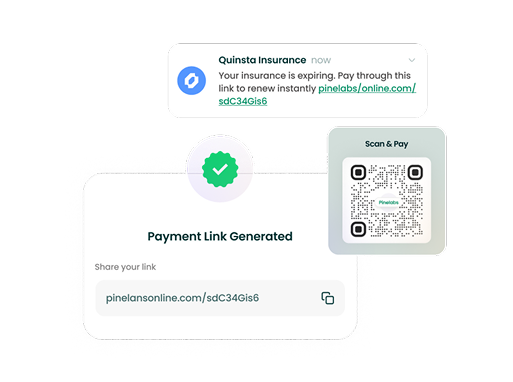
How to Bulk Upload Payment Links
To create multiple payment links using the Pine Labs Dashboard:
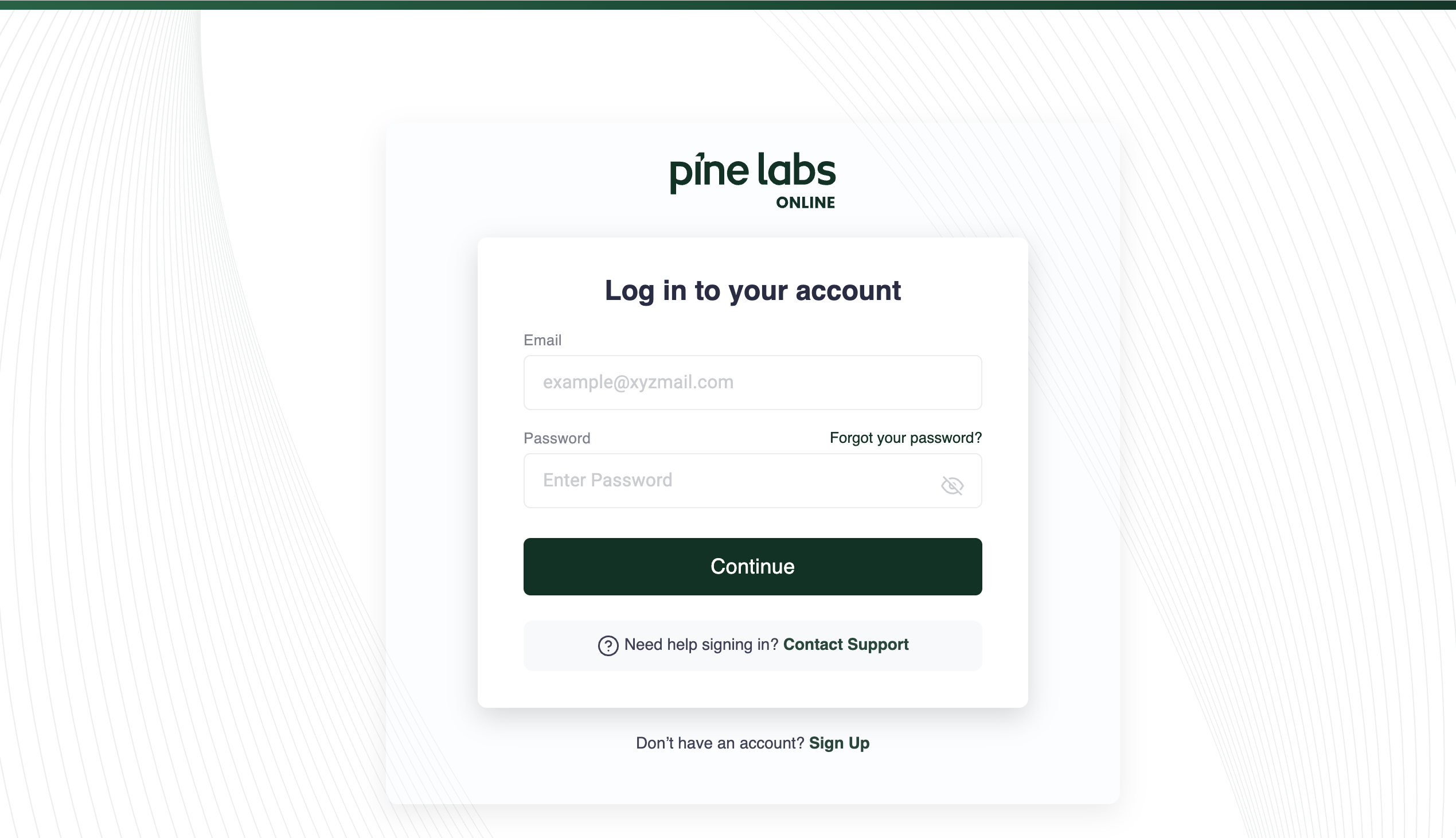
1. Log in to the Merchant Dashboard
Access your Pine Labs merchant account and open the Payment Links section. Create Account
2. Open Payment Links
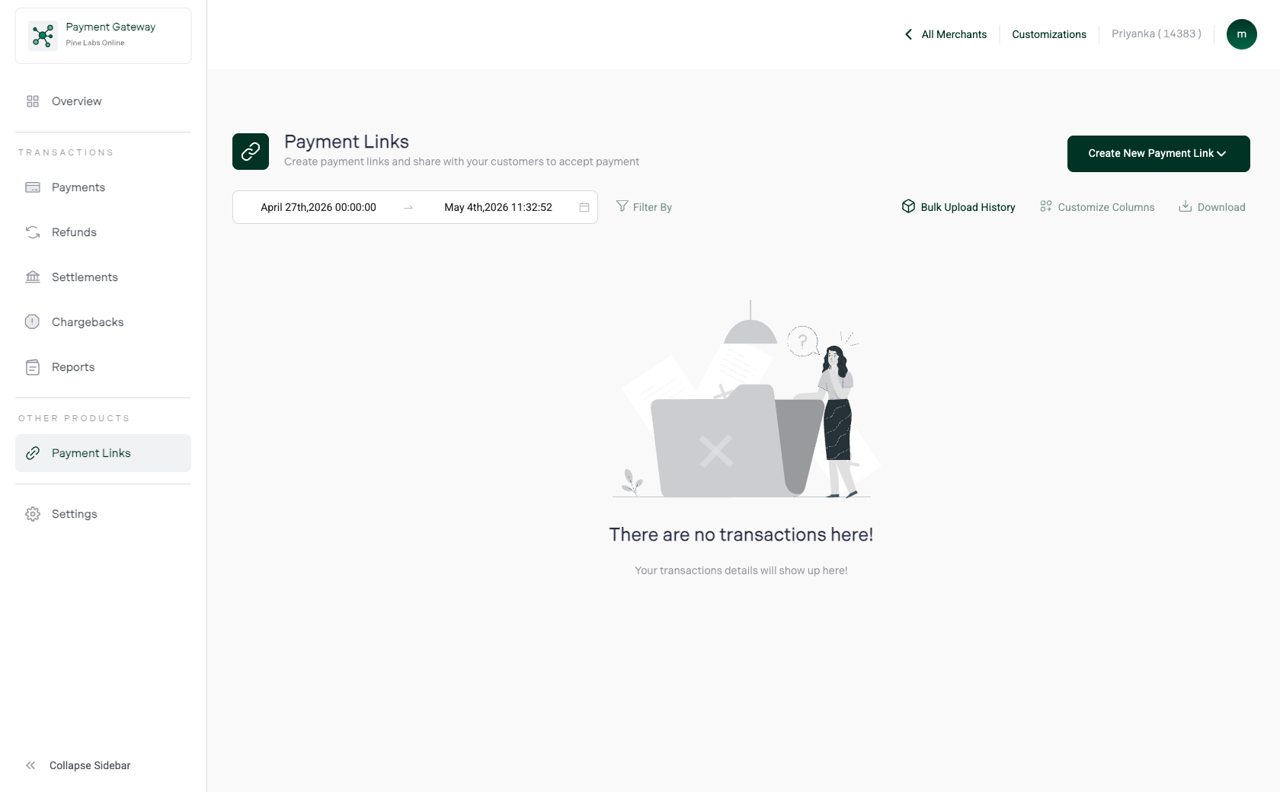
Navigate to:
- Payment Links
3. Create New Payment Link
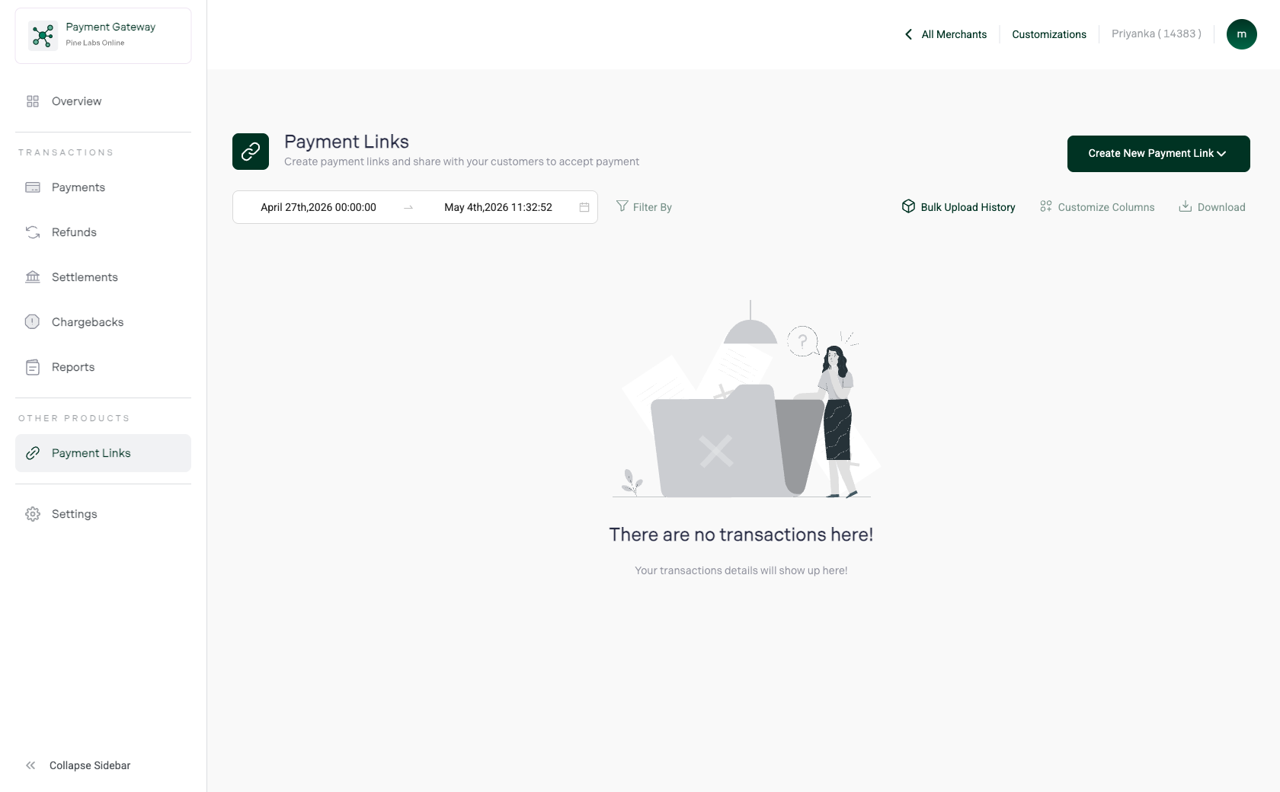
Click Create New Payment Link from the top-right corner.
From the dropdown menu, select:
- Bulk Payment Links
4. Download the CSV Template
Click Download CSV Template to download the sample file.
The template contains the required fields for creating payment links, including:
- Amount
- Invoice Number
- Description
- Customer Email
- Mobile Number
5. Prepare the CSV File
Before uploading:
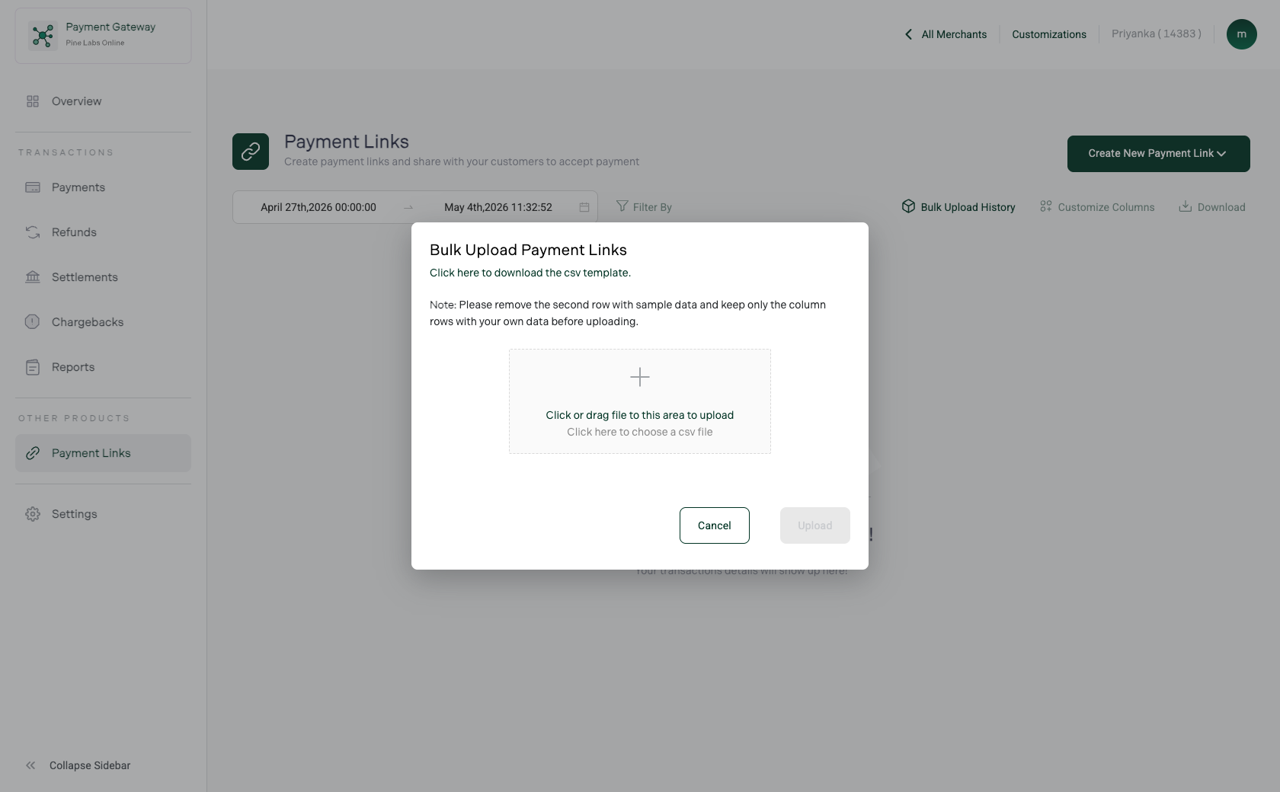
- Remove the sample data row
- Keep only the header row and your actual records
- Ensure all mandatory fields are correctly filled
For security reasons, rows beginning with the following characters are automatically rejected during upload validation:
=
+
-
@
6. Upload the CSV File
Drag and drop the CSV file or browse your system to upload it.
Click Upload to begin processing the payment links.
After Bulk Upload
Once the upload is completed:
- Payment links are created successfully
- Links appear in the Payment Links listing page
- Status updates automatically
- Customers receive payment links via SMS and email (if contact details are provided)
- Automated reminders are triggered based on configured reminder settings
You can monitor upload status and processing outcomes from the Bulk Upload History page in the dashboard.
Benefits of Bulk Payment Links
- No-code online payment collection
- Faster invoice and payment processing
- Ideal for high-volume merchant operations
- Secure and validated payment workflows
- Easy payment tracking and reconciliation
- Improved customer payment experience