
Settings
Configure API credentials,webhooks, checkout branding, payment modes, payouts, subscriptions, and merchant account settings from the Pine Labs Online dashboard.
Configure your Pine Labs Online merchant account, manage API credentials, register webhooks, customise hosted checkout branding, enable product modules, and view active payment methods — all from a single Settings dashboard.
The Settings section helps merchants, developers, operations teams, and support teams securely manage account-level configurations for both dashboard usage and API integrations.
What You Can Configure in Settings
The Settings dashboard gives you centralized control over:
- API authentication credentials for backend integrations
- Webhook URLs and payment event notifications
- Hosted checkout branding and styling
- Product module enablement such as Payouts and Subscriptions
- Payment method visibility and activation status
UAT and Production environments have separate configurations, credentials, and webhook URLs.
Accessing the Settings Dashboard
To open Settings:
- Log in to your Pine Labs Online merchant dashboard
- Navigate to the left sidebar
- Click Settings
The Settings dashboard contains the following tabs:
| Tab | Purpose |
|---|---|
| Credentials | Manage Client ID and Client Secret for API authentication |
| Webhook | Configure webhook URLs and event notifications |
| Checkout Styling | Customize hosted checkout branding |
| Customization | Enable modules and configure payment link limits |
| Payment Modes | View active payment methods enabled on your account |
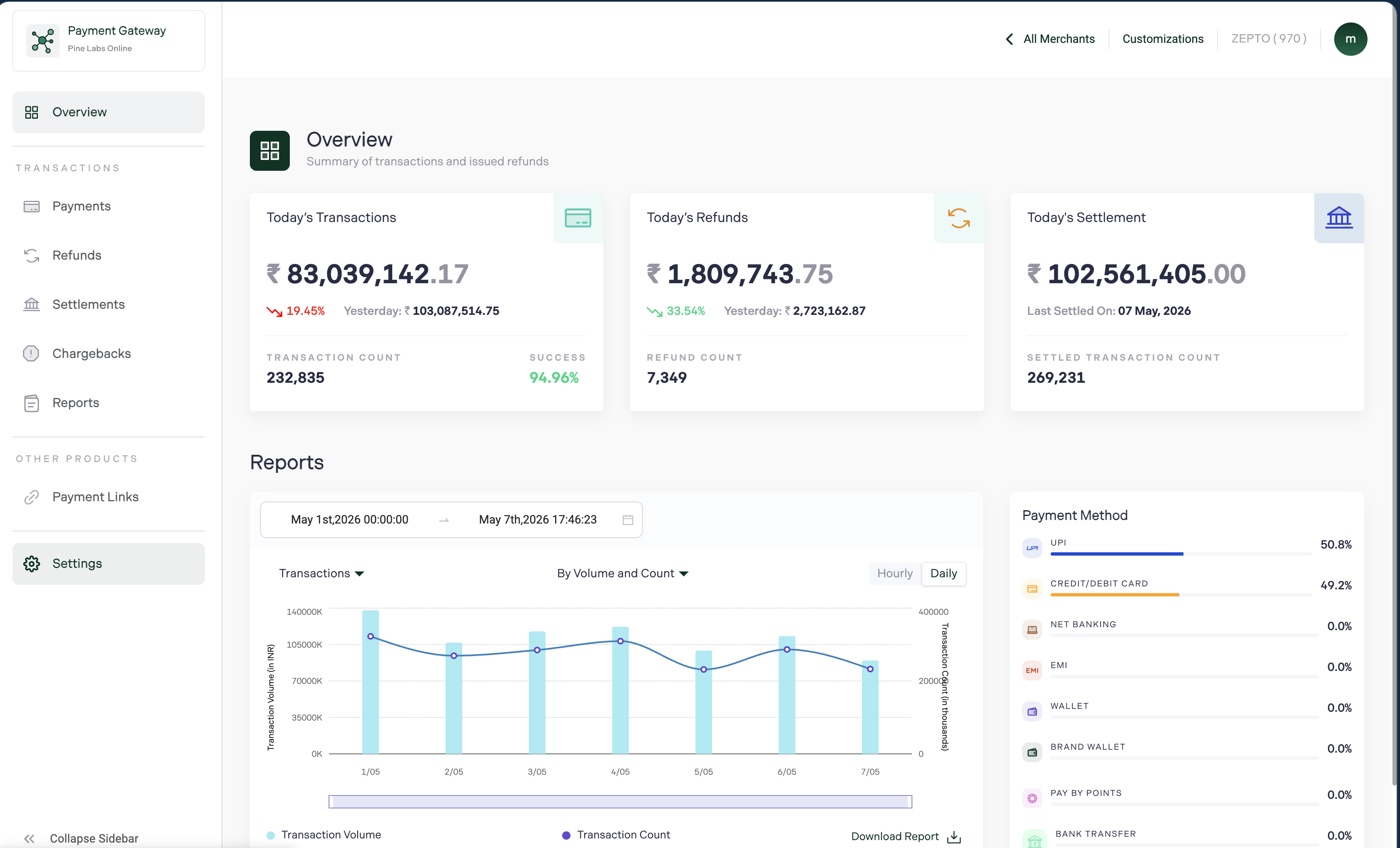
Credentials
The Credentials tab provides secure API authentication keys required for Pine Labs Online integrations.
Available Credentials
| Field | Description |
|---|---|
| Client ID | Public identifier used for API authentication |
| Client Secret | Private authentication key used to generate access tokens |
The Client Secret is masked by default for security purposes.
Available Actions
- Copy Client ID or Client Secret
- Reveal hidden Client Secret using the eye icon
- Regenerate Client Secret if compromised
Security Best Practices
:::warning Never expose Client Secret in frontend applications or public repositories. :::
- Store credentials using environment variables or a secrets manager
- Rotate secrets immediately if leaked
- Never commit secrets to Git repositories
- Use backend-only authentication flows
Generate Access Token
const response = await fetch('https://api.pluralonline.com/api/auth/v1/token', {
  method: 'POST',
  headers: { 'Content-Type': 'application/json' },
  body: JSON.stringify({
    client_id: process.env.PINE_LABS_CLIENT_ID,
    client_secret: process.env.PINE_LABS_CLIENT_SECRET,
    grant_type: 'client_credentials',
  }),
});

const { access_token } = await response.json();
Environment-Specific Credentials
| Environment | Base URL | Credentials |
|---|---|---|
| UAT | https://pluraluat.v2.pinepg.in | Separate UAT credentials |
| Production | https://api.pluralonline.com | Separate Production credentials |
Always use the correct credentials for the selected environment.
Webhook Configuration
The Webhook tab allows you to receive real-time payment event notifications directly on your server.
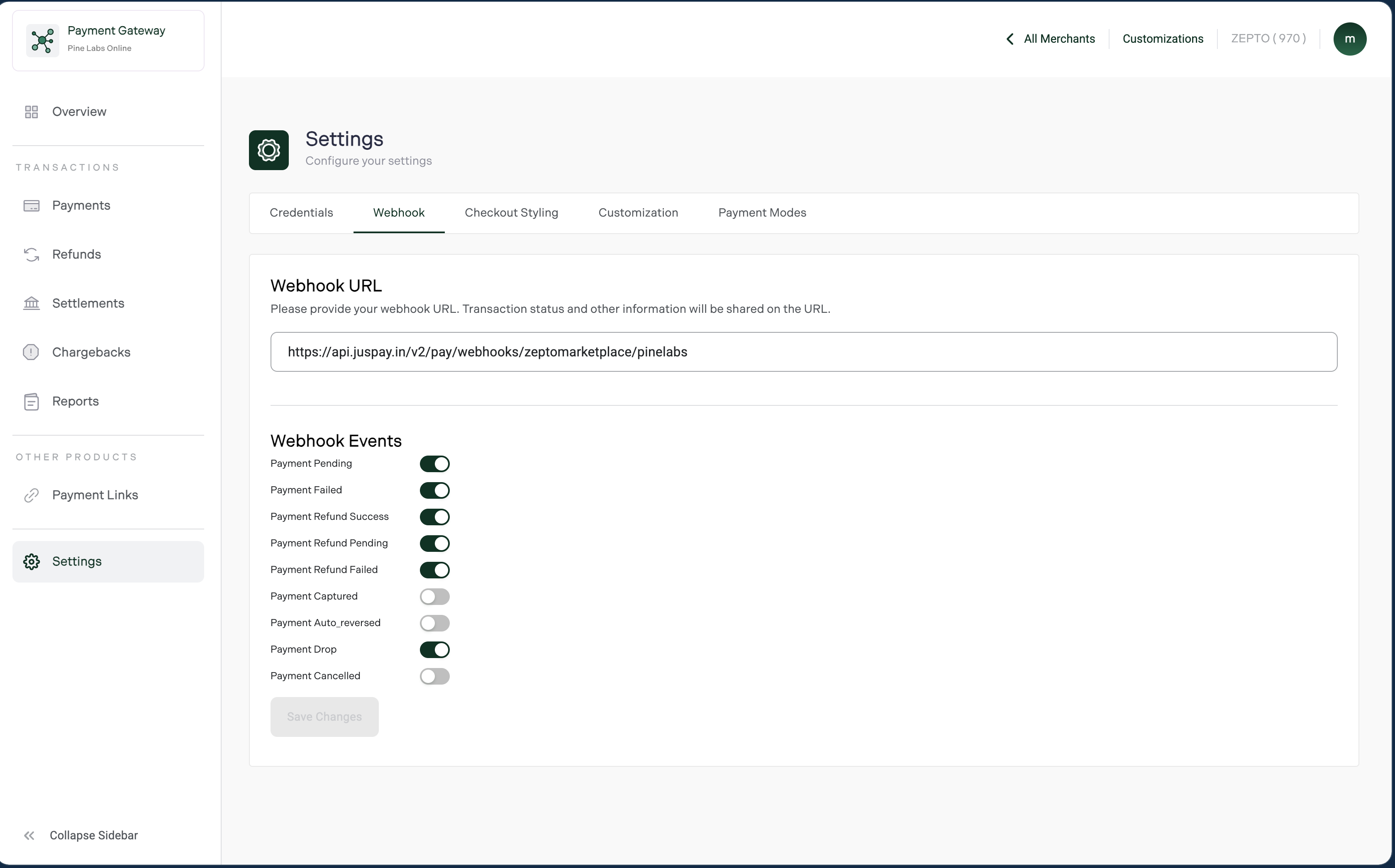
Configure Webhook URL
Add your secure HTTPS endpoint where Pine Labs should send payment updates.
https://api.juspay.in/v2/pay/webhooks/zeptomarketplace/pinelabs
Supported Webhook Events
| Event | Description |
|---|---|
| Payment Pending | Payment is awaiting completion |
| Payment Failed | Payment attempt failed |
| Payment Refund Success | Refund completed successfully |
| Payment Refund Pending | Refund initiated and processing |
| Payment Refund Failed | Refund processing failed |
| Payment Captured | Payment successfully captured |
| Payment Auto_reversed | Payment auto-reversed due to timeout or failure |
| Payment Drop | Customer exited checkout flow |
| Payment Cancelled | Payment cancelled |
Webhook Setup Workflow
- Enter your Webhook URL
- Enable required webhook events
- Click Save Changes
- Verify delivery using test events
:::tip Keep all refund-related webhook events enabled for accurate reconciliation. :::
Checkout Styling
The Checkout Styling tab allows you to customise the appearance of the Pine Labs hosted checkout page.
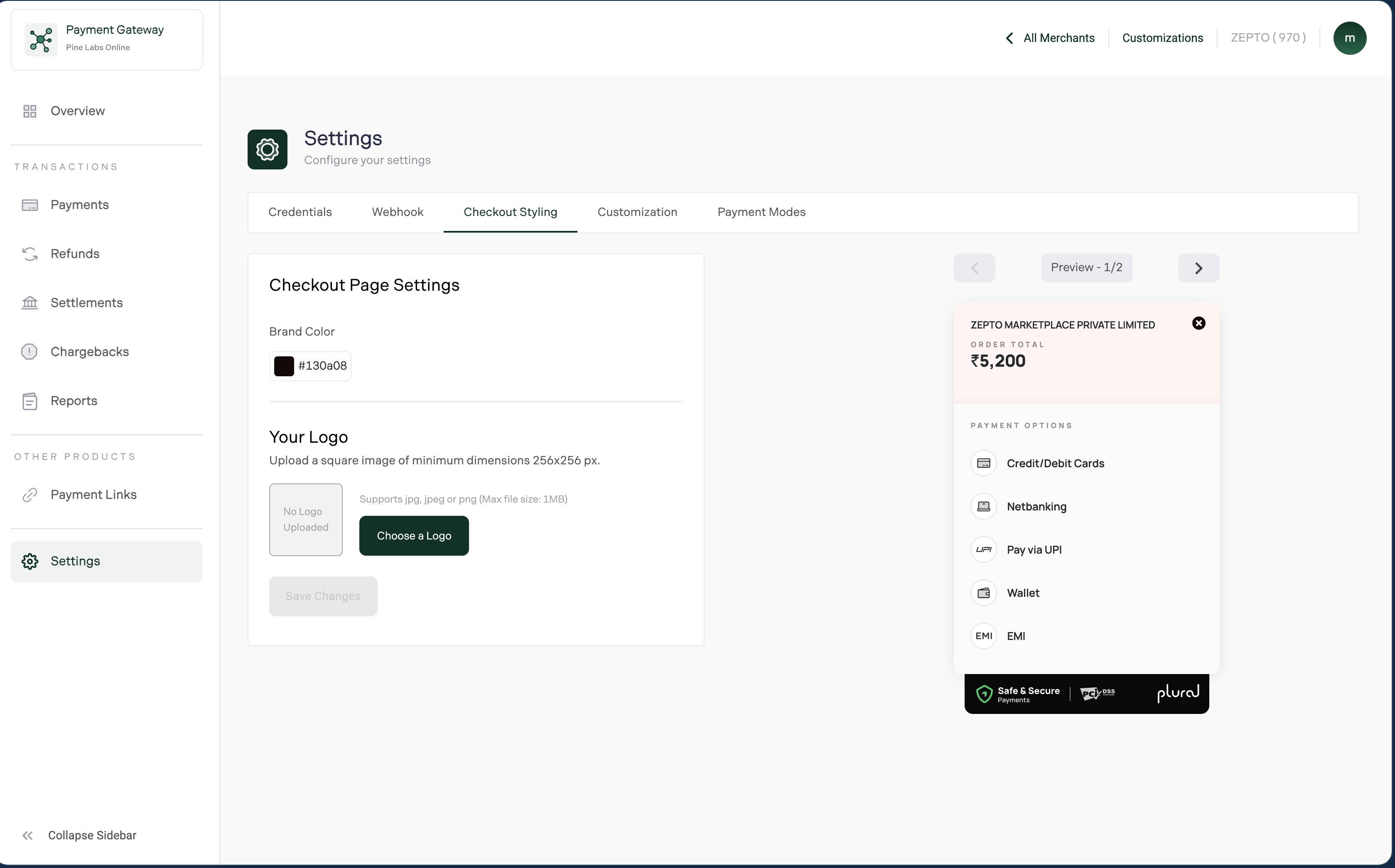
Branding Options
| Element | Details |
|---|---|
| Brand Color | Hex color used for checkout highlights and headers |
| Logo Upload | JPG, JPEG, or PNG image up to 1 MB |
Live Checkout Preview
The dashboard includes a live preview panel that updates instantly when:
- Brand colors are changed
- Logos are uploaded
- Checkout states are previewed
This helps ensure branding consistency before publishing changes.
Checkout Branding Best Practices
- Use the same logo across your website and checkout
- Match checkout colors with your brand identity
- Maintain consistent business naming
- Keep branding clean to improve customer trust and reduce payment drop-offs
Customization
The Customization tab helps merchants enable optional modules and configure account-level limits.
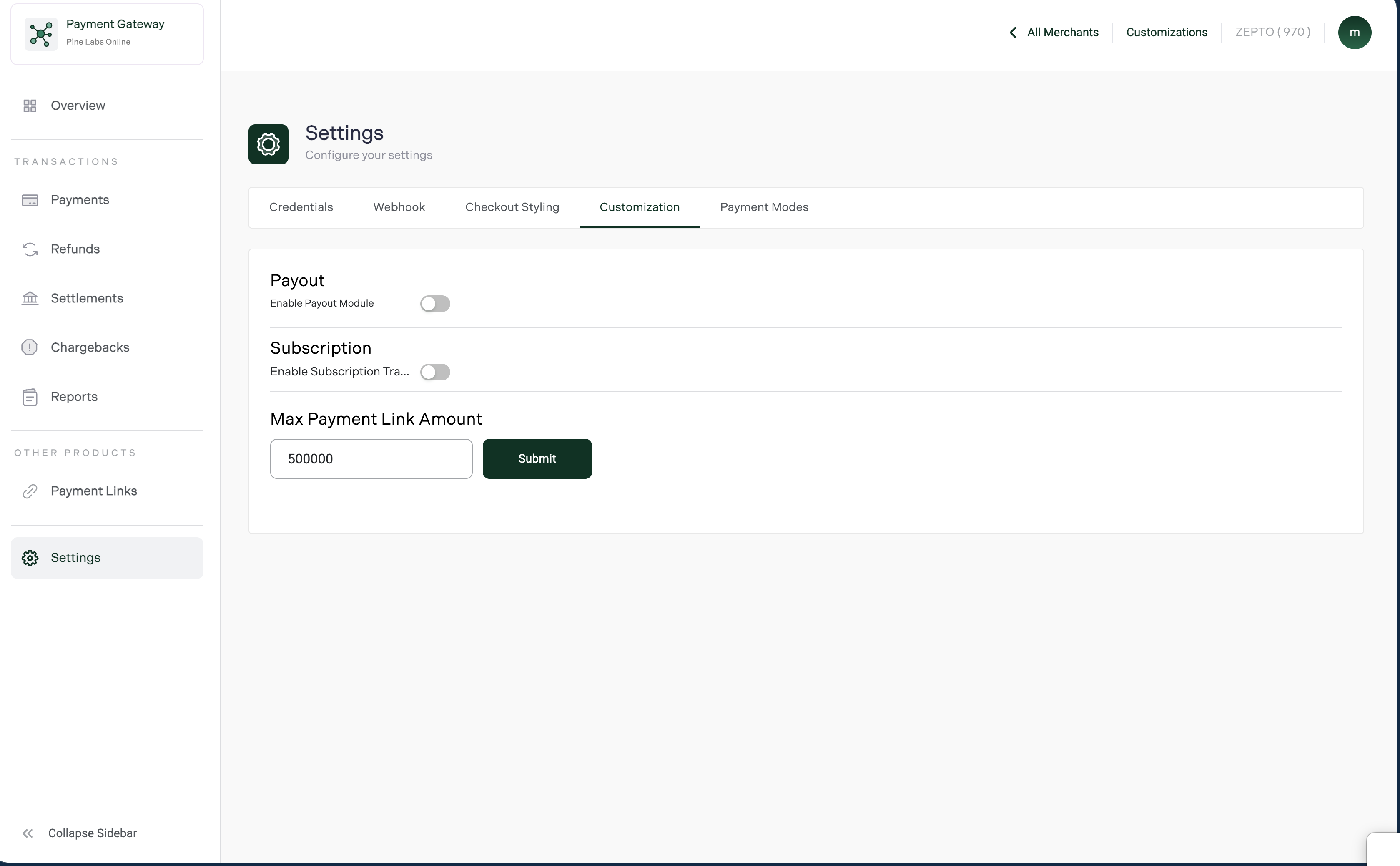
Available Settings
| Setting | Purpose |
|---|---|
| Enable Payout Module | Activate Payouts functionality |
| Enable Subscription Tracking | Enable subscription lifecycle tracking |
| Max Payment Link Amount | Set upper transaction limit for payment links |
Default maximum payment link amount: 500000 INR (minor unit).
Configuration Workflow
- Enable required modules
- Configure payment link limit
- Click Submit
:::note Some modules may require commercial activation from Pine Labs before becoming available. :::
Payment Modes
The Payment Modes tab displays all payment methods enabled for your merchant account.
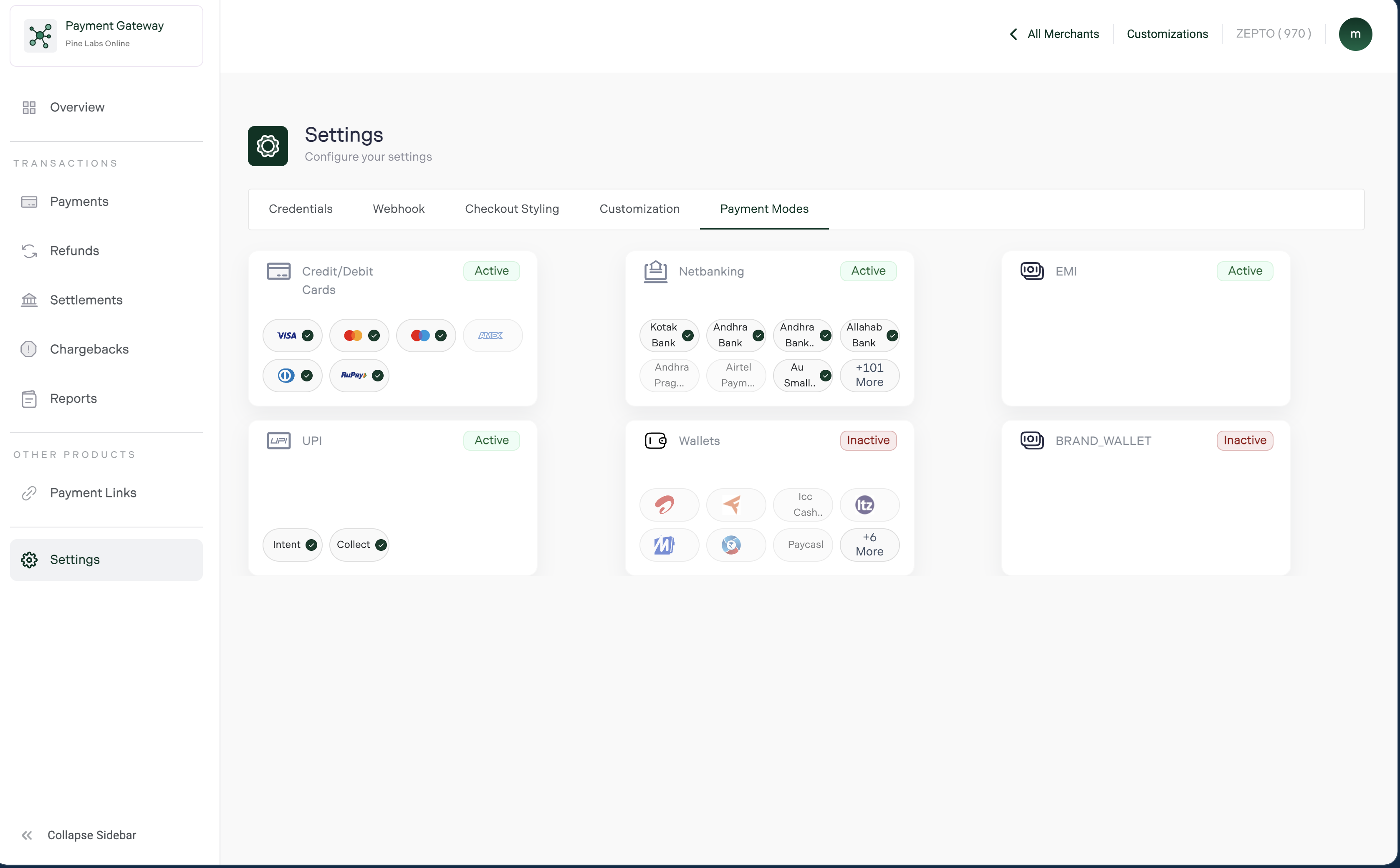
Supported Payment Methods
| Payment Method | Supported Options | Status Visibility |
|---|---|---|
| Credit & Debit Cards | VISA, Mastercard, Maestro, Amex, Diners, RuPay | Active / Inactive |
| UPI | Intent and Collect flows | Active / Inactive |
| Netbanking | Supported banks and issuers | Active / Inactive |
| Wallets | Enabled wallet providers | Active / Inactive |
| EMI | EMI issuers and partners | Active / Inactive |
| Brand Wallet | Merchant-specific wallets | Active / Inactive |
Understanding Payment Status
- Active indicates the payment method is enabled
- Inactive indicates the method is not enabled for your account
- Green ticks indicate supported issuers or networks
- Overflow indicators such as
+101 Moreshow additional supported banks or wallets
Enabling Additional Payment Methods
The Payment Modes section is read-only for merchants.
To enable:
- Additional banks
- Wallets
- EMI providers
- New payment methods
Contact your Pine Labs account manager.
Common Settings Tasks
| Task | Tab | Action |
|---|---|---|
| Get API credentials | Credentials | Copy Client ID and Client Secret |
| Rotate compromised secret | Credentials | Regenerate and update backend |
| Update webhook endpoint | Webhook | Change URL and save |
| Disable webhook events | Webhook | Toggle events off |
| Change checkout branding | Checkout Styling | Update logo or colors |
| Configure payment link limits | Customization | Edit Max Payment Link Amount |
| Enable Payouts | Customization | Turn on Payout Module |
| Verify EMI availability | Payment Modes | Check EMI status |
FAQ
How do I get Pine Labs API credentials?
Navigate to Settings → Credentials to access your Client ID and Client Secret.
What happens when I regenerate my Client Secret?
The previous secret becomes invalid immediately. Update your backend configuration before using the new secret in production.
Can I configure multiple webhook URLs?
The dashboard supports one webhook URL per environment. For multi-destination delivery, use your own webhook proxy service.
Can I use the same API credentials for UAT and Production?
No. UAT and Production environments use separate credentials and base URLs.
Why is my checkout logo not appearing?
Ensure:
- File size is below 1 MB
- File format is JPG, JPEG, or PNG
- The logo appears correctly in the live preview
- Browser cache is refreshed after saving changes